OpenAS2 Server Application
Server Documentation
Copyright: Uhuru Technology
Table of Contents
5. Basic Functional Overview 5
7.1. Key Configuration Concepts 8
7.2. Dynamic Configuration Changes 9
7.3. “home” Configuration Parameter 9
7.4. Setting Configuration Values 9
7.4.1. OpenAS2 Configuration Properties 9
7.4.2. Environment Variables 10
9. Application Configuration 13
9.1.1. Directory Polling Configuration Attributes 15
9.1.2. Partnerships XML Defined Directory Poller 16
9.1.3. Generic Send Directory Poller 17
9.1.4. Restricting Directory Files By Extension Or Name 17
9.1.5. Auto Splitting Large Files 18
9.2.1. Overriding Storage Location Per Partnership 20
9.2.2. Providing Default File Name 21
9.3. AS2 Message State Tracking To Database 21
9.3.1. Default Database Message State Logging 21
9.3.2. Managing the Default Embedded H2 Database 22
9.3.3. Using An External Database For Message State Tracking 22
9.3.4. Optimising External Database Performance 23
9.4. Overriding Certificate Store Password 23
9.5. Resend Retry Configuration 23
9.6. Asynchronous MDN Response Wait Time 24
9.9. Health Check For High Availability Deployment 26
9.9.1. Healthcheck URI On Existing AS2 Listener 26
9.9.2. Dedicated Healthcheck Module 26
9.9.3. HTTP User Agent Header 27
10.2. Partnership Definition 28
10.2.4. Reject Unsigned Messages 30
10.2.5. Dynamic AS2 Url Configuration 30
10.2.6. Allow Expired Partner Certificates For Signature Verification 32
10.3. Example Multi-Partner Configuration 32
10.4. Configuring the AS2 Message ID 33
10.5.1. Configuration Sources 34
10.5.2. Configuring Dynamic Content-Type Lookup 35
10.5.3. Lookup Algorithm Explanation 36
10.6. Content Transfer Encoding 36
10.7. Supported Encoding Algorithms 36
10.9.1. Static Header Values 37
10.9.2. Dynamic Header Values From File Name 37
10.9.2.2. Regular Expression Mode 38
10.9.3. Adding Custom Headers To HTTP 39
10.10. Setting Dynamic Attributes From File Name 39
10.12. Storing Partnerships In A Database 40
11. AS2 Certificate Configuration 41
11.1. Certificate Usage Overview 41
11.2. Certificate Keystore Configuration 43
11.3. Managing Certificate Keystore 43
11.4.1. Creating Certificates 44
11.4.2. Creating Public Key For Sending To Partner 45
11.4.3. Importing Into OpenAS2 Keystore 45
11.4.4. Supporting Multiple Certificates 46
11.4.5. Overlapping Old And New Certificates When Changing 46
11.5.1. Importing New Or Replacing Existing Public Keys 48
11.6. Possible Issues With Older Certificates 48
11.7. Suggested Steps For Certificate Setup 48
11.7.2. Partner Certificates 50
12.2. Log Level Configuration 51
12.3. Log Date Format Configuration 51
12.4. Suppressing Invalid HTTP Request Message 51
13.1. Asynchronous MDN Receiver Configuration 52
13.2. MDN Sender Configuration 52
14. SSL Certificates - Configuring HTTPS Transport 53
14.1. SSL Certificates – Inbound Connections 53
14.4. Outbound Transfers – Client Certificate Authentication 55
14.5. Outbound Transfers – Self Signed Partner SSL 56
14.5.1. Simple Host Name Check 56
14.5.2. Host Name Check And Certificate Fingerprint Match 56
15.3. Automated Launching As UNIX Daemon 59
15.4. Windows Service Management 60
15.4.3. Troubleshooting Windows Service 61
16. Testing OpenAS2 Transfers 63
16.1. Single Instance Testing 63
16.2. Multiple Instance Testing 63
16.3. Using HTTPS Transport 64
17. Troubleshooting OpenAS2 64
17.1. Canonicalization For MIC Algorithm 65
17.3. HTTP Restricted Headers 66
17.4. CMS Algorithm Protection 66
17.5. Content Length Versus Chunked 66
17.6. SSL Certificate Exceptions 67
17.7. Mime Body Part Logging 68
17.9. HTTP Read Timeout Errors 69
17.10. Out Of Memory And File Size Issues 70
18. Partner AS2 Compatibility Settings 70
19.1. REST API Command Processor 71
19.1.1. Server Side Configuration 72
19.1.3. Retrieving The MDN File Path 73
20. Appendix: partnership.xml file structure 74
21. Appendix: command.xml file structure 76
22. Appendix: Updating database structure 77
23. Appendix: Creating database DDL for external databases 78
The OpenAS2 application enables you to transmit and receive AS2 messages with EDI-X12, EDIFACT, XML, or binary payloads between trading partners. The AS2 implementation conforms with RFC4130 supporting the 1.1 specification.
This document describes how to install, configure and use OpenAS2. An appendix provides information on upgrade procedures as new versions of the application are released.
In this document a partner can be either your own company or a company you will be exchanging data with using AS2. A partner can receive and/or send documents to the other partner and each direction is controlled by a separate partnership configuration setup.
The sample configurations in this document are based on Unix type OS but in general the only significant difference is that it may be necessary to use “\” instead of “/” for folder name separators on Microsoft Windows based machines but because the application is Java it should work fine leaving the “/” for the most part as Java will do the conversion if necessary.
This document is valid for version 2.11.0 and up.
As of version 4.0.0 the default license is a GPL V3 license. If you wish to resell OpenAS2 either as a standalone service or embedded within your own product then you must apply for a commercial license from Uhuru Technology. You are of course permitted to continue using versions prior to 4.0.0 which were distributed under the BSD license.
EDI – Electronic Data Interchange
MDN - Message Disposition Notification
JCE - Java Cryptography Extension
UI – User Interface
Partner – a definition of an entity that can receive or send AS2 messages to any other partner. A partner is a logical entity meaning you can have multiple partner entries defined for your own organisation as well as for other organisations you wish to exhange AS2 messages with
Partnership – a definition of how a sending partner connects to a receiving partner. For given partners A and B requiring both way transfers, there must be a separate partnership defined for each transfer direction.
The package downloaded from Sourceforge will only run on Java 11 and up. If you require Java 8 then it will require some additional work but you will not be able to use the web based configuration UI.
Currently the core OpenAS2 package is compiled on Java 8 but other supporting libraries used by the UI configuration API are compiled with Java 11 so to use Java 8 you will need to remove the API packages.
To do this remove all jar files in the “lib” folder that match the following patterns:
*ws*
grizzly*
jersey*
Make sure you have not enabled the REST API command processor in the config.xml if you remove these files.
NOTE: The configuration UI and associated API is deprecated and will be removed in the next major release.
The OpenAS2 application provides the following mechanisms for sending and receiving files with a vanilla deployment:
Files to be sent are placed in folders that are detected by
directory polling modules and sent to the relevant destination AS2
partner using the AS2 protocoal. These polling modules are
configured in XML and provide the ability to determine the target
partner either based on the file being in a specific folder that is
specifically designated for a target partner or a generic folder
where the file name contains the relevant information to determine
the target partner.
If configured for an MDN response, the MDN
response from the partner is stored in a folder defined by the MDN
storage module
Received files from partners are placed in a location defined
the message storage module. The default configuration for OpenAS2
creates dedicated inbox folders per partnership.
If configured
for an MDN response, the application will automatically send an MDN
that is by default signed.
All sent and received files are tracked in a database tracking system that updates the progress of the message state in the database at key points in the life cycle of message.
To be able to run the OpenAS2, you will need:
Java™ installed on the machine you intend to run the OpenAS2 server on – this document uses Java 1.7.refer to the compatibility notes for the minimum version of Java supported. Currently it is Java 11 or higher.
The OpenAS2 package version you wish to use. The downloadable
packages can be found here:
https://sourceforge.net/projects/openas2/files
Java Cryptography Extension (JCE) policy files you can download the correct version from the Java website. Search “Java Cryptography Extension Unlimited Strength“ to find the right cryptography extension for your version of Java. The current link for Java8 is here.
The following steps will provide an installed app on a target machine:
Unzip the downloaded OpenAS2
package into a suitable location, which we will refer to as
<install_dir>.
NOTE:
Typical values for
<install_dir>
locations are
/opt/OpenAS2
under Linux®/Unix
or C:\OpenAS2
under Microsoft® Windows®. You
can include the version number of the installed package in the
folder name for ease of identifying the deployed version.
If on a Unix based system you may
need to run this command to make shell scripts executable but most
systems these days respect the file permissions embedded in the ZIP
file:
chmod 755
<install_dir>/bin/*.sh
For the
encryption and certificate management to work correctly, you must
have the proper JCE policy files installed in your version of Java
(see system requirements above). The downloaded zip archive contains
the two files local_policy.jar and
US_export_policy.jar. Install them into
your Java location under <JAVA_HOME>/lib/security.
Back up the existing files before installing these new ones. There
are numerous detailed articles on the web for installing these files
if you need more information.
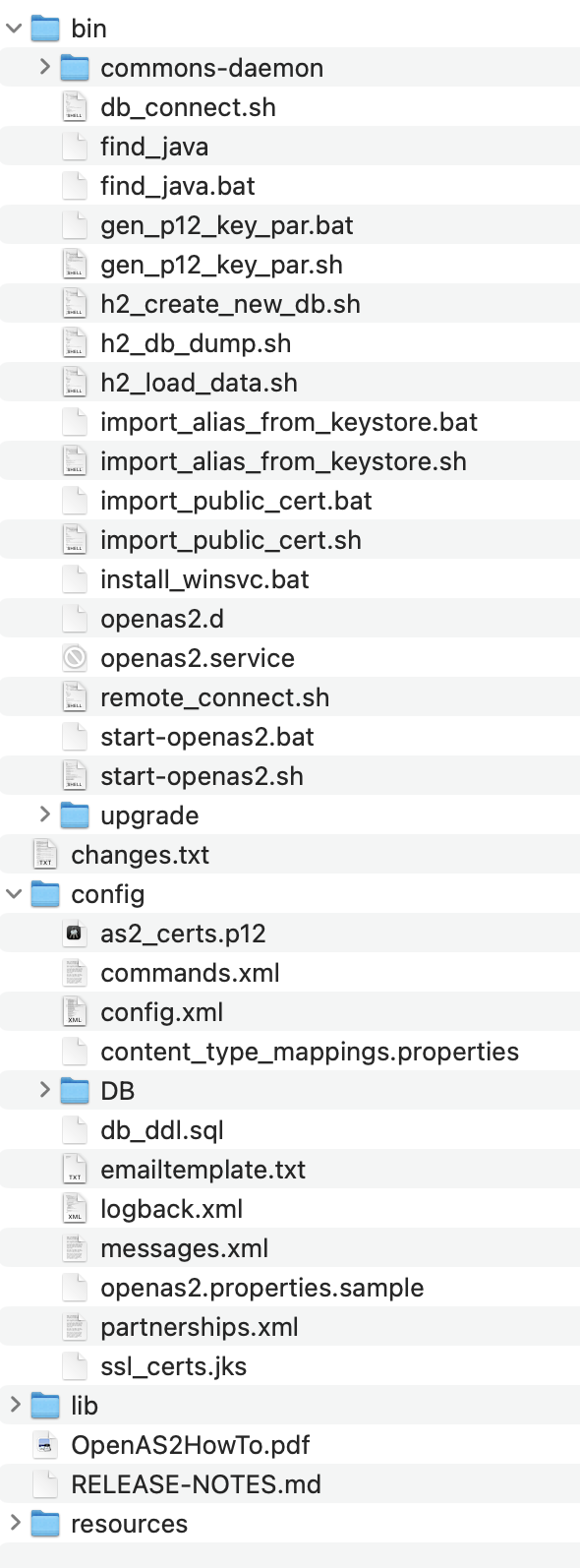
The file structure will look something like the figure below without the data and logs folders which are created automatically by the server when it starts based on configuration if they do not exist.
The default settings for the Java virtual machine in the startup script (start_openas2.sh or start_openas2.bat) will work for installations on most machines for low volume/small file size transfers. However, if your system will be transferring large files or you want to use parallel processing mode for sending files to achieve very high throughput (see Directory Polling Configuration Attributes), you will need to increase memory allocation. If you expect to support very high inbound AS2 traffic you will need to increase memory allocation and possibly tune the garbage collector to get reasonable performance.
NOTE: See the section on splitting large files – it will be much more performant for very large files.
How much you can increase memory allocation to Java will depend on how much RAM is installed on the system running OpenAS2 and how many other processes will be running concurrently that will also require memory. Most systems deploy with at least 8GB RAM these days so increasing memory allocation from the default amount in the startup script should not cause adverse affects to the system.
To increase memory allocation you need to increase the heap space. This is set using the -Xmx option. You could increase this from the 384m (m = MB) default setting to 1g or 2g to get good performance for larger files or busy systems and for very large files given enough RAM you can set it to 6g or 8g. Search for “-Xmx” in the startup script and adjust accordingly.
For garbage collection you may want to allocate a more appropriate garbage collector than the default parallel collector that is the default in Java. In Java 7 and up, the G1 collector is ideal if you use large heap space allocation. To enable it add this to the command line parameter:
–XX:+UseG1GC
Based on basic internal testing and user feedback, the following are guidelines for setting your heap space (Xmx):
files up to 50MB – 384m
files up to 150MB – 756m
files up to 300MB - 2g
files up to 500MB – 3g
files up to 750MB - 4g
NOTE: The recommended way to configure OpenAS2 is to use the properties file method as described in the section OpenAS2 Configuration Properties below. However, a fuller description of how OpenAS2 configuration works is provided in the next few sub sections allowing more advanced setup and customisation if desired.
This section explains the details of the configuration files and how they link together.
The OpenAS2 server uses four files to configure and execute:
config.xml
– configures
the application such
as the types of modules that are started, the logging systems,
command processors and global properties. This
is the key file for starting OpenAS2 and must be passed in either as
a command line option or as an environment variable. If the
application cannot find the file it will fail to start.
NOTE:
	This is the default name for the file and is referred to in this
	document by that name but you can use any name you like since it is
	passed in from the command line by the invoking batch script
or
can be set as an environment variable.
The
	file path can be passed in as an environment variable named
“OPENAS2_CONFIG_FILE”
	or you can directly modify the shell script.
For
example in the *nix
shell script it is this line that determines the configuration file
name and location and
assumes the default folder structure is not changed when installing
OpenAS2:
EXTRA_PARMS="$EXTRA_PARMS
	-Dopenas2.config.file=${binDir}/../config/config.xml"
The
Microsoft
	batch file has a similar line.
Most
	values that may need to be modified for customized deployments or
	setting sensitive values such as passwords are extracted to
	properties at the top of the config.xml file which in turn can be
	overridden by an external properties file as described later in this
	document
and
is the preferred method of configuring the OpenAS2 server.
partnerships.xml
– configures
the partners and
partnerships. Provides
the ability to specify different signing and encryption algorithms,
message compression, MDN handling etc
NOTE:
	This is the default name for the file and is referred to in this
	document by that name but you can use any name you like – see the
	Partner Configuration
	section below for how to set a different name.
as2_certs.p12
– a
PKCS12
keystore
	that
stores
the SSL
certificates used
to secure the messages for
all partners. It
contains the primary key for your own company as well as the public
keys for all your trading partners
NOTE:
This is the default name for the file and is referred to in this
document by that name but you can use any name you like – see the
AS2 Certificate Configuration
section below for how to set a different name.
commands.xml
– the
application provides a way to enter commands to control and
configure the system whilst it is running either via the console or
a remote tool (configured in the config.xml file above). This file
stores
the commands that the application will support. This
file should not be modified.
Dynamic
Configuration Changes
At
startup, the application caches the configuration from the
config.xml, partnerships.xml and the as2_certs.p12 files. The
system will monitor the partnership configuration file and the
asAS2
certificates file for any changes to the files after the application
has started. If a change is detected in either of the files, the
system will automatically
refresh the partnership definitions
or
the certificates from the changed files as appropriate
.
IMPORTANT:
Currently
the
config.xml
file and
associated properties file are
is
notNOT
monitored for changes and will require a restart of the application
for any changes in thoseat
files
to be picked up.
“home”
Configuration Parameter
The
folder containing the config.xml
file defines the home
configuration parameter that can be used to reference other files on
the file system relative to a known base folder in the app. This is
done by encapsulating
home
in percentage signs (%home%).
All files can be referenced relative to this parameter and it is how
the default config.xml
file
defines the location of other configuration and data file locations
used by the OpenAS2 application.
Therefore
the
default home location for
%home% with
the current default OpenAS2 folder structure will be:
[InstallDir]/config
Passing
In
Setting
Configuration
Values
The
application supports 32
ways of passing in configuration parameters that
can
be used in the modify
the config.xml file default settings without
having to change the config.xml file.
Using
one or more of these methods instead of modifying the config.xml file
makes it easier to upgrade to new releases.:
OpenAS2 Configuration
PropertiesThis is
the recommended approach to configuring
OpenAS2.
All
properties
in the config.xml can be overridden using
a properties file placed anywhere on the file system and made
available to the OpenAS2 configuration engine by passing in the
path
to the file in an environment variable named
“OPENAS2_PROPERTIES_FILE”
and
you would define it something like this in a Nix system:
export
OPENAS2_PROPERTIES_FILE=/opt/OpenAS2/config/openas2.properties
Running
the OpenAS2 startup script will then add the value from that
environment variable to the Java invocation so that the configuration
engines uses the
properties from that file
to override the default values in
the config.xml file.
A
sample file with the current properties is provided in the config
directory:
<install
dir>/config/openas2.properties.sample
It is
best to only put the values you are changing in the properties file
defined
in the OPENAS2_PROPERTIES_FILE
environment
variable so
it is easy to know what you have changed from the default provided by
the OpenAS2 package and will make upgrades simpler and
for the most part seamless since generally OpenAS2 tries to remain
fully backwards compatible.
Any
properties added into this file will become available in the OpenAS2
configuration engine and will override any other values with matching
property names within the engines context which includes all
properties in the <properties> section of the config.xml file.
If
you want to configure your partnerships using properties then you can
add any additional properties you want to use into the properties
file and you can reference them using this format in the
partnerships.xml file attribute values.
For
instance, adding this to the properties file:
some_prop_name.enc_alg=MyPreferredEncryptionAlgorithm
…
can then be referenced in the XML file like this:
<attribute
name="encrypt"
value="$properties.some_prop_name.enc_alg$"/>
Environment
Variables
ThisUsing
environment variables
avoids exposing sensitive information in the execution environment.
Any
property
defined in the parameterfile
in the discussed
in the previous section
or any attribute value in the config.xml configuration
file
can
be changed to source its value from an environment variable by
setting the value of the property
or parameter
to include
a string in this
format as
part of the value:
$ENV{env
var name}
For
instance, the password for the certificates file could be set like
this in the external
properties file:
as2_keystore_password=$ENV{AS2_CERTIFICATE_PWD}
…
or like this in the <properties> element of the config.xml:
<certificates
classname="org.openas2.cert.PKCS12CertificateFactory"
filename="%home%/as2_certs.p12”
passwordas2_keystore_password="$ENV{AS2_CERTIFICATE_PWD}"
interval="300"/>
Then
set the password in
the as
an environment
variable
as
below before running the startup script:
export
AS2_CERTIFICATE_PWD=my_secret_password
System
PropertiesProperties
can be passed into the application
using
the Java
command line format:
-D<property name>=<property
value>
The
properties passed in this way will NOT overwrite any existing
configuration properties in either the openas2.properties file of the
properties section of the config.,xml so this mechanism is only
useful for new properties you want top use for custom
configuration.See
All network modules that listen for inbound HTTP requests can be configured to bind to a specific IP address (or host name) on the server using the “address” attribute. These modules by default will bind to localhost (127.0.0.1).
section of this document for
an extended discussion on using system properties.
Environment
variable replacement occurs BEFORE system properties so you can use
environment variables to set properties in the config.xml which in
turn are used for other config values. For instance, you can change
this in the <properties> section of the config.xml:
<properties storageBaseDir="%home%/../data"
To:
<properties
storageBaseDir="$ENV{storageBaseDir}"
Then
setting the “storageBaseDir” environment variable will set the
property which in turn sets that values where that property is used.
Dynamic variables can be used in configuration files for run time replacement of strings. It allows using values that are determined either at startup or in real time at the time an action is taken in one of the modules supporting things like:
referencing a common value across partnerships or modules using properties
creating folder structures with names based on message identifiers, dates etc
identifying the partners in an AS2 transaction
changing the name of the file sent to the partner
adding custom headers to the HTTP message
Some variables are specific to certain processor modules and not supported for all situations where dynamic variables can be used. The variables used in the configuration files are as follows:
The file named “config.xml” configures the modules that will be activated by the AS2 server when it starts up. This file can be located anywhere within the disk subsystem on which the OpenAS2 application runs as it is passed into the application as a startup parameter.
Some of the key configuration settings in the config.xml file are:
define the modules to be activated in the OpenAS2 application
override module default classes in the AS2 code base
enhance or change behaviour of modules and the inputs and outputs of the modules.
define the location of the certificates keystore and password
define the location of the partnerships configuration file
specify the listening ports
enable support for high availability/load balanced environments
change system behaviour via properties
See appendices for a detailed definition of the config.xml file structure.
There are 3 2 component groups configured in the config.xml that control plugin components for those groups. All the plugin components can be enabled/disabled by settingan the appropriate “enabled” attribute on the componentproperty in a properties file explained in the previous section and generally the enabled value is available to be set in the properties at the head of the config.xml file if you want to change the config.xml file.
The component groups are :
Loggers
The <loggers> element is the parent element for all logger plugins and each logger is defined in a <logger> element.
The loggers provide different output destinations for logging and some of the loggers are disabled by default
The “enabled” attribute in the <logger> element is required and can be either “true” or “false”
Command processors
The <commandProcessors> element is the parent element for all command processor plugins and each command processor is defined in a <commandProcessor> element.
Command processors support configuration and system setting query commands and some of these command processors are disabled by default.
The “enabled” attribute in the <commandProcessor> element is required and can be either “true” or “false”
Certificates
The <certificates> element is the parent element for all certificate handlers
There is one required handler for AS2 certificates and a 2nd that is disabled by default for the self signed certificate trust keystore
Modules
The <processor> element is the parent element for all module plugins and each module is defined in a <module> element.
Modules support ca variety of functions in OpenAS2 such as directory polling, receivers for AS2 and MDN messages, file system persistence and health checks. Some modules are disabled by default.
The “enabled” attribute in the <commandProcessor> element is NOT required and can be either “true” or “false”. If the attribute is not present on the <module> element then it will default to “true”
There are 2 listening ports for inbound connections (see partnerships.xml config for outbound connections) used for:
receiving messages and synchronous MDN's – default port number 10080
receiving asynchronous MDN's - default port number 10081
The port numbers are arbitrary and defaulted to a number above 1024 that does not require root access to listen on (normally on Unix type systems any port below 1024 requires root access). The port values are important to the partner you will be communicating with if they will be sending AS2 messages to your system. For outbound only systems, it is only necessary to have a listener for asynchronous MDN's if using that mechanism for MDN's.
Each module has a number of attributes that can be configured on the module elemenusing propertiest to control and change how the module behaves.
All network modules that listen for inbound HTTP requests can be configured to bind to a specific IP address (or host name) on the server using the “address” attribute. These modules by default will bind to localhost (127.0.0.1)..
System Level Properties
Properties
can be passed into the application
in
a
2 ways:Command
line- this
uses the Java command line format of:
-D<property
name>=<property value>
The default bash script can be
used pass these in by invoking the script
with the additional properties. For instance, to change
the default “storageBaseDir”
property you would do this:
./start_openas2.sh
-dstorageBaseDir=/opt/OpenAS2Data
Separate
properties file that will override the defaults – see below for
details on usage.
There are a number of properties that can be defined in the config.xml <properties> element that apply globally to functionality in the system. These are discussed in the relevant functional area they apply to.
These properties can be overridden using a separate properties file or using command line properties. To use an overriding properties file, pass the properties file name including path in a Java system property on the command line using the property named “openas2.properties.file”. If this is found in the Java system properties then the properties from this file will override any properties in the config.xml <properties> element. So for example you could create a file “my.properties” with the following in it:
storageBaseDir="%home%/../data"
log_date_format="yyyy-MM-dd HH:mm:ss.SSS"
sql_timestamp_format="yyyy-MM-dd HH:mm:ss.SSS"
email.logger.enabled="false"
Start the OpenAS2 app by adding this to the startup command:
-Dopenas2.properties.file=my.properties
Properties can also be used in the XML configuration for config.xml processors or in the partnerships configuration to facilitate changing in one place instead of having to change in multiple places. An example of this is the “storageBaseDir” property used in the config.xml.
Properties are also used to enable and disable configuration components as discussed in the previous section.
A <properties> element attribute can be used to define the "as2_url” in one place and then the partnerships files just use that property reference.
For example having this in the config.xml:
<properties storageBaseDir="%home%/../data"
as2_async_mdn_url="http://localhost:10081"
/>
Then setting the “as2_receipt_option” as shown below will mean you only have to change the async MDN URL in one place and use the following in all partnerships using async MDN mode:
<attribute name="as2_receipt_option" value="$properties.as2_asyn_mdn_url$"/>
You can also embed properties references within other properties to limit the number of places things must be changed for a single change. As an example, the Asyn MDN recevier module port might need to be changed and will need to be reflected in the partnership config:
<properties storageBaseDir="%home%/../data"
async_mdn_receiver_port="10081"
as2_async_mdn_url="http://localhost:$properties.async_mdn_receiver_port$"
/>
Then you can use the as2_async_mdn_url property in the partnership for async MDN as shown above and the async_mdn_receiver_port property in the config for the async MDN module:
<module enabled="$properties.module.AS2MDNReceiverModule.http.enabled$"
classname="org.openas2.processor.receiver.AS2MDNReceiverModule"
port="$properties.async_mdn_receiver_port$"/>
OpenAS2 has a directory polling module that scans configured directories for files and will send the file to a partner. The directory scanner will check each file it finds for 2 consecutive poll cycles and if the size has not changed then it will push the file into the send queue.
The destination partner for the files is determined in 2 possible ways:
Configuring a specific folder to be mapped to a specific
partnership configuration.
This is the preferred mechanism for
sending files. All files dropped in a specified folder will be sent
to the same partner. Each partnership entry must explicitly be
enabled to have a poller.
A single generic directory for files destined to any partner
configured in the config.xml file.
This mechanism will process
files for all partnerships in series unless you enable parallel
processing and can make it much harder to debug when things go
wrong. There is a sample configuration provided in the installation
package config.xml. This requires the name of the file to be in a
very specific format. See the next sub section for details on how
this works.
The partner to send to is determined either by a dedicated folder for a partner or using a generic folder where the target partner is identified by parsing the file name of the file found by the directory polling module. Some of the kCommoney attributes for the polling modukle defined in the config.xml are:
outboxdir – a text string that can contain dynamic variables the will be evaluated at startup to produce a file path that specifies the directory to scan for files to send.
errordir - specifies the directory to put files in when something goes wrong trying to send the file
interval - specifies how many seconds between each scan of the directory
sendfilename - specifies that the sent message must include the file name for the remote partner
mimetype – sets the mime type in the header for the file in the message sent to the partner
process_files_in_parallel –
by default each detected file is processed in series
which has a significantly lower throughput. The default value
for this is “false”. Typically it will process a 10K file
in just under a second meaning if files arrive at a slightly faster
rate there will be a growing backlog. Set this to “true”
to process files in parallel.
IMPORTANT NOTE: Parallel
processing is likely to consume more memory (RAM) so make sure your
server has sufficient RAM to cope. If you are consistently
transferring very large files (>100MB) in high volume then
parallel processing may not be a good idea.
max_parallel_files – if parallel processing is enabled for the poller then this attribute will limit how many files are processed in parallel simultaneously. The default value for this is “20”. The bigger the average size of the files, the smaller you should make this value to avoid memory issues that could significantly slow down the processing speed.
For all poller attributes, the following dynamic variables can be used within value string for all forms of poller configuration:
$properties.*$
$date.*$
$random.*$
For the pollers configured in the partnership, an additional property cane be use top access partnership and associated partner attributes using the following format:
$partnership.name$ - gets the partnership “name” attribute value
$partnership.sender.XXX$ - gets the an attribute value from the partner node associated as the sender in the partnership
$partnership.receiver.XXX$ - gets the an attribute value from the partner node associated as the receiver in the partnership
In the above, the XXX can be any of:
name
as2_id
x509_alias
See the section on partnerships defined pollers below for an example.
This poller is configured as a child element of the partnership element that requires a poller in the partnerships.xml file. Only partnerships that must SEND files should have this configuration.
The advantage of this poller configuration is that the directory poller is automatically removed if the partnership is disabled or removed and retains a cleaner configuration over time.
When the OpenAS2 server detects a change to the partnerships.xml file it will automatically clear all existing partnerships defined pollers and reload all partnerships, starting any pollers for the partnerships configured to load a poller module.
The base configuration for these pollers is stored in the config.xml file in the “pollerConfigBase” element. Each attribute in this base element can be overridden in the partnership. The base configuration defines the outboxdir to include the name of the partnerships receiver AS2 ID allowing it to be used in any partnership element without requiring an override. If the base configuration outboxdir is changed, be aware that this can adversely affect existing deployed partnerships using the partnership enabled poller.
The minimum required setting in a partnership to enable a poller is shown below. Insert the shown element as a child of the <partnership> element to enable a poller for that partnership:
<pollerConfig enabled="true"/>
If the “enabled” attribute is set to any value other than “true” or the attribute is not present then a poller will not be added for that partnership.
The below properties define the default values for partnership configured pollers:
pollerConfigBase.outboxdir="$properties.storageBaseDir$/outbox/$partnership.receiver.as2_id$"
pollerConfigBase.errordir="$properties.storageBaseDir$/outbox/error/$date.yyyy$-$date.MM$-$date.dd$/$partnership.receiver.as2_id$"
pollerConfigBase.interval="5"
pollerConfigBase.defaults="sender.as2_id=$partnership.sender.as2_id$, receiver.as2_id=$partnership.receiver.as2_id$"
pollerConfigBase.sendfilename="true"
pollerConfigBase.mimetype="application/EDI-X12"
pollerConfigBase.process_files_in_parallel="false"
pollerConfigBase.max_parallel_files="20"
pollerConfigBase.max_file_processing_time_minutes="30"
Do not change the “defaults” attribute unless you know what you are doing – it is specified to retrieve the sender and receiver AS2 ID’s from the partnership that the poller is configured in and changing it will cause the poller to fail to know where to send files to or send them to the incorrect destination. The file name sent to the partner will be exactly the name of the file as it is when detected by the directory polling module unless there is some other configuration to override the file name as defined in the “File Name Parsing” section further down in this document.
If you want to override any of the pollerConfigBase properties values on a per partnership basis, put the relevant attribute you want to override into the pollerConfig element in the partnership.
For example, to override the outdboxdir attribute, you would have this in the pollerConfig element:
<pollerConfig enabled="true" outboxdir="/my/specific/base_dir/$partnership.receiver.as2_id$"/>
The rest of the values will use the pollerConfigBase .* values for that partnership.
This uses a generic directory for receiving files to send to a paaprtner defined by the “outboxdir” attribute and relies on the file name to be in a specific format to extract the sender and receiver ID’s. In the example config.xml file, there is a directory polling module configured with the below XML:
<module classname="org.openas2.processor.receiver.AS2DirectoryPollingModule"
outboxdir="$properties.storageBaseDir$/toAny"
errordir="$properties.storageBaseDir$/toAny/error"
interval="5"
delimiters="-."
mergeextratokens="false"
sendfilename="true"
format="sender.as2_id, receiver.as2_id, attributes.filename"
process_files_in_parallel="false"
max_parallel_files="20"
mimetype="application/EDI-X12" />
delimiters a - attribute specifies how to split the file name into multiple parts.
format d - defines the variables that will be set based on the parsed file name. Using the value set in the example above, the first three parts of the split file name set the sender, receiver and filename.
mmergeextratokens - forces any extra tokens from splitting the file name using the delimiters to be merged into the final token from the “format” attribute
So for this example, a file name of the form:
MyCompany-YourCompany-TheEdiFileNameToBeSent.edi
would send a message from the AS2 ID “MyCompany” to AS2 ID “YourCompany” and send the file name as “ TheEdiFileNameToBeSent”. If you wanted to include the “.edi” extension in the file name to be sent then the “delimiter” attribute must NOT contain the “.” character OR set the “mergeextratokens” attribute to “true”. See the File Name Parsing“File Name Parsing” section further down in this document for more details.nn
$partnership.receiver.as2_id$$partnership.receiver.as2_id$ $ sentdir="$properties.storageBaseDir$/outbox/sent/$partnership.receiver.as2_id$/$date.YYYY$-$date.MM$-$date.dd$"
is f and changing it will cause the poller to fail to know where to send files to
If you want to override any of the attributes from the pollerConfigBase element, you simply put the relevant attribute you want to override into the pollerConfig element in the partnership.
For example, to override the outdboxdir attribute, you would have this in the pollerConfig element:
<pollerConfig enabled="true" outboxdir="/my/specific/base_dir/$partnership.receiver.as2_id$"/>
The rest of the attributes will be sourced from the pollerConfigBase element.
Dedicated Sending
The below XML defines a dedicated directory for files to be sent to a specific partner:
<module
classname="org.openas2.processor.receiver.AS2DirectoryPollingModule"
outboxdir="$properties.storageBaseDir$/toPartnerA/"
errordir="$properties.storageBaseDir$/toPartnerA/error"
interval="5"
defaults="sender.as2_id=MyCompany_OID, receiver.as2_id=PartnerA_OID"
sendfilename="true"
mimetype="application/EDI-X12"/>
The “defaults” attribute specifies the sender and receiver AS2 ID’s for any file that lands in the folder. The file name sent to the partner will be exactly the name of the file as it is when detected by the directory polling module unless there is some other configuration to override the file name as defined in the “File Name Parsing” section further down in this document.
The directory polling module can be configured to only use files with a specific extension and/or exclude files with a specific extension and/or exclude files based on a regular expresssion match on the entire file name.
The attributes allow multiple extensions to be defined using a comma as separator that can contain spaces before or after the comma. This is configured adding either or both of the following attributes for either of the above examples for a directory polling module although it does not make sense to use both at the same time:
fileextensionfilter="doc, docx, txt, edi"
fileextensionexcludefilter="tmp"
filenameexcluderegexfilter=".+Tmp[.]{1}.+"
The attributes above are evaluated as an AND function so if any of the filters excludes a file it ignores the other filters and excludes the file from processing.
Using the above attributes, files with “.tmp” on the end of the file name or with “Tmp.” in the file name will be ignored and only files with “.doc” “.docx”, “.txt”, “.edi” will be processed.
NOTE: Using both “fileextensionfilter” and “fileextensionexcludefilter” at the same time is generally redundant since the “fileextensionfilter” does NOT include “tmp” extensions so the “.tmp” will be ignored with just the “fileextensionfilter” option in this example.
Configuration can be added per partnership definition to automatically split files into smaller files for sending to a partner. This only works for line based files where the file contains information that is split up into multiple lines and the splitter reads the input file line by line calculating the size of each line and adding to a running tital until it the total exceeds the specified maximum size. Typically this is used for very large CSV files.
The following attributes can be added to the partnership definition that defines sending a file from your location to your partner:
<attribute name="split_file_threshold_size_in_bytes" value="1073741824"/>
<attribute name="split_file_contains_header_row" value="true" note="If true, the header row will be repeated in each file"/>
<attribute name="split_file_name_prefix" value="SF" note="Each split file name will be prefixed with the string specified here if set"/>
The attributes have the following effect:
split_file_threshold_size_in_bytes – specify in bytes the threshold size of the file to be sent. The actual size will at most be the specified threshold size plus the length of line that crosses the threshold so if your lines could be very long and the file size is critical, specify a smaller size to accommodate.
split_file_contains_header_row - If set to “true”, the header row will be repeated in each file. If omitted or set to any other value, this attribute has no effect.
split_file_name_prefix" - Each split file name will be prefixed with the string specified here. if set. If omitted or set to the empty string, this attribute has no effect.
Each new file will be prefixed with a zero padded incrementing counting reflecting the files being created from the source file.
Using the example attributes above, files will be split at 1GB into multiple files where if the source file name is a 3GB file named my_test_data.csv, the resulting files sent to the partner would be SF01-my_test_data.csv, SF02-my_test_data.csv, SF03-my_test_data.csv and each file would have the first row from the original source file repeated in each file sent.
NOTE: The partner will receive multiple files where the file name will be prefixed with a unique zero padded identifier to give the split files a unique reference as explained above.
As an alternative to polling a directory, files to be sent can be sourced from a message queue using the JmsPollingModule. An external system publishes a message to the queue identifying the sender and receiver AS2 IDs and the location of the file to be sent, and OpenAS2 consumes that queue message and sends the file through the normal sending pipeline. Any broker supporting AMQP 1.0 can be used, for example Azure Service Bus, via the Apache Qpid JMS client.
This decouples the production of files from OpenAS2 and allows the broker to own the retry and dead-lettering behaviour. Because the queue is shared, multiple OpenAS2 instances can consume from the same queue to provide high availability and failover. Note that the total outbound concurrency is the number of instances multiplied by the consumer_count value so keep it within the connection limits your partners allow.
The file itself is not carried in the queue message. The queue message identifies a file that must be readable by the OpenAS2 instance that consumes it, so the file must be on shared storage if more than one instance is consuming from the queue.
The module is enabled by adding it to the processor section of the config.xml as shown below:
<module
classname="org.openas2.processor.receiver.JmsPollingModule"
broker_url="amqps://your-namespace.servicebus.windows.net"
broker_user="$properties.servicebus.sas_key_name$"
broker_password="$properties.servicebus.sas_key$"
queue_name="outbound-as2"
consumer_count="1"
sender_id_property="sender_as2_id"
receiver_id_property="receiver_as2_id"
filepath_property="filepath"
filename_property="filename"
errordir="$properties.storageBaseDir$/outbox/error/$date.yyyy$-$date.MM$-$date.dd$"
sentdir="$properties.storageBaseDir$/sent"
mimetype="application/EDI-X12"/>
The attributes are as follows:
broker_url - the AMQP URL of the broker to connect to.
broker_user and broker_password - the credentials used to connect to the broker. For Azure Service Bus these are the shared access key name and the shared access key.
queue_name - the name of the queue to consume the messages from.
consumer_count - the number of concurrent consumers this instance will run against the queue. Defaults to 1.
sender_id_property and receiver_id_property - the names of the properties on the queue message that hold the AS2 ID of the sender and of the receiver. These are used to identify the partnership to send the file with.
filepath_property and filename_property - the names of the properties on the queue message that identify the file to be sent.
errordir and sentdir - the directories the file is moved to after a failed or a successful send, as for the directory polling module. Both support dynamic variables.
mimetype - the content type set on the message sent to the partner.
In order otto receive and persist files over AS2 from a partner you must have the following configured:
A network receiver module – receives files over the network from a partner. There can be multiple receiver modules listening on different ports and these can be configured to use HTTPS as defined in the “Inbound Transfers” section for using HTTPS. This module extracts the file from an AS2 message and then searches for a module that can process the extracted file
A file handler module – this module is responsible for persisting the file extracted from the received AS2 message or handing it off for further processing.
The default configuration provided with the OpenAS2 installer There is not much to configure for receiving files. As long as there is an AS2 receiver handler active, messages will be received and the files stored in the configured directory for the MessageStorageHandler module. The default modules for receiving and storing files in the config.xml file properties section is shown below.
<module classname="org.openas2.processor.storage.MessageFileModule"
filename="$properties.storageBaseDir$/$msg.sender.as2_id$-$msg.receiver.as2_id$/inbox/$msg.content-disposition.filename$-$msg.headers.message-id$"
header="$properties.storageBaseDir$/$msg.sender.as2_id$-$msg.receiver.as2_id$/msgheaders/$date.yyyy-MM-dd$/$msg.content-disposition.filename$-$msg.headers.message-id$"
protocol="as2"
tempdir="$properties.storageBaseDir$/temp"/>module.MessageFileModule.enabled="true"
module.MessageFileModule.filename="$properties.storageBaseDir$/$msg.sender.as2_id$-$msg.receiver.as2_id$/inbox/$msg.headers.message-id$"
module.MessageFileModule.header="$properties.storageBaseDir$/$msg.sender.as2_id$-$msg.receiver.as2_id$/msgheaders/$date.yyyy-MM-dd$/$msg.headers.message-id$"
module.MessageFileModule.tempdir="$properties.storageBaseDir$/temp"
module.AS2ReceiverModule.http.enabled="true"
module.AS2ReceiverModule.http.port="10080"
<module classname="org.openas2.processor.receiver.AS2ReceiverModule"
port="10080"
errordir="$properties.storageBaseDir$/inbox/error"
errorformat="sender.as2_id, receiver.as2_id, headers.message-id"/>
The “filename” attribute for the message storage module determines where the received file will be stored and in which directory. This can be overridden per partnership so that file storage locations can be completely different to the default location. To do this, add a store_received_file_to attribute to the partnership
<attribute name="store_received_file_to" value="$properties.storageBaseDir$/inbox/$msg.receiver.as2_id$/inbox/$msg.sender.as2_id$-$rand.12345$-$msg.content-disposition.filename$"/>
The above adds the sender AS2 ID into the file name and stores it in a folder specific to the receiver AS2 ID.
Normally the sender will send the name of the file in the payload headers but is not required in AS2 so you can set a default filename for this case.
It is set in the config.xml file properties section using attribute as2_receive_message_filename_fallback as shown below. It supports $msg, $date and $rand style dynamic parameters.
<properties
storageBaseDir="%home%/../data"
log_date_format="yyyy-MM-dd HH:mm:ss.SSS"
sql_timestamp_format="yyyy-MM-dd HH:mm:ss.SSS"
as2_message_id_format="OPENAS2-$date.ddMMyyyyHHmmssZ$-$rand.UUID$@$msg.sender.as2_id$_$msg.receiver.as2_id$"
as2_async_mdn_url="http://localhost:10081"
as2_receive_message_filename_fallback="$rand.shortUUID$"
/>
To override this set the property in the openas2.properties file.
As of version 2.1.0 the system will track key events in the message transmission and reception process and invokes any configured action handlers that can then process the information in some way. The default deployment of OpenAS2 supports a database tracking module that will write the message state to an embedded H2 database. As an AS2 message is processed, key points are logged to the database for a given message as a single record. As the message reaches the next state, the system overwrites the previous state.
The database tracking uses the module "org.openas2.processor.msgtracking.DbTrackingModule".
Configuration
parameters for the database tracking functionality are
shown
in the table below.
Function |
Attribute Name |
Default Value |
|---|---|---|
Database name |
db_name |
openas2 |
Database user name |
db_user |
sa |
Database password |
db_pwd |
OpenAS2 |
Database table name ** |
table_name |
msg_metadata |
Database file directory – used for embedded database |
db_directory |
|
Use Embedded Database |
use_embedded_db |
true |
Escape character for SQL strings |
sql_escape_character |
‘ (single quote) |
JDBC connect string |
jdbc_connect_string |
jdbc:h2:$component.db_directory$/$component.db_name$ |
JDBC Driver – not necessary if using at least JDBC 4.0 |
jdbc_driver |
org.h2.Driver |
Force loading of the JDBC driver class. Use if there are issues with JDBC |
force_load_jdbc_driver |
false |
Provide JDBC access to H2 via TCP |
tcp_server_start |
true |
H2 Listening port for the JDBC access |
tcp_server_port |
9092 |
H2 Password for the TCP server |
tcp_server_password |
openas2 |
**
IMPORTANT:
Using a different table name requires ensuring that the database
schema has the same table name. See the appendices for information on
creating the schema.
The
user name and password for
the H2 database can
be changed using either a JDBC connection or the command line tool as
described below. It is recommended that a readonly user is added for
reading data from the database.
To
connect to the H2 database whilst OpenAS2 is running use this JDBC
connect string:
jdbc:h2:tcp://localhost:9092/openas2
To
query the database from the command line, you must have OpenAS2
running then use this command:
java
-cp [path
to OpenAS2 install]/lib/h2-1.4.197.jar
org.h2.tools.Shell
-user sa -password OpenAS2 -url jdbc:h2:tcp://localhost:9092/openas2
There
is a script in the bin folder named db_connect.sh
that will do the above for you.
There
is a file named db_ddl.sql
file located
in the config folder that
can be used to create the necessary table structure if your DB
becomes corrupted.
Run the
command found in the “bin” directory of your install in the order
defined to recreate the DB if you are on a unix based system or
use the “No script option” if you are on Microsoft Windows.
Run
the command with “-h”
option to get the command line options:
h2_create_new_db.sh
-P <your DB password>
No
script
option:
java -cp <path
to install dir>\lib\h2-<version
of H2 lib>.jar
org.h2.tools.RunScript -user sa -password <password>
-url jdbc:h2:<path
to install dir>/config/DB/openas2
-script <path
to install dir>/config/db_ddl.sql
The
other
way to
recreate the database table is
using
this command whilst
OpenAS2 is running:
java
-cp [path
to OpenAS2 install]/lib/h2*
org.h2.tools.RunScript -user sa -password OpenAS2 -url
jdbc:h2:tcp://localhost:9092/openas2 -script [path
to OpenAS2 install]/config/db_ddl.sql
NOTE:
The version of H2 deployed with the application only works in Java 7
or higher. Download the older version of H2 that was compiled with
support for Java 1.6 if you wish to use Java 6:
https://storage.googleapis.com/google-code-archive-downloads/v2/code.google.com/h2database/h2-2014-01-18.zip
(Replace the jar in the OpenAS2 lib folder with that version and
change the startup script to include the replaced version of H2,
delete the files in
<installDir>/config/DB,
restart
OpenAS2 server
and recreate the database using the command referenced above).
See
appendixes for information on creating external database DDL
statements and updating the existing database if the schema is
changed in a new release.
Use of an external database can be configured for any database that has a JDBC driver such as Oracle, MySql, MariaDB, SQLServer or Postgresql.
To use
an external database:
put
the appropriate JDBC driver jar for
the SQL system you want to use into
the “lib” folder of the OpenAS2 install
the
“use_embedded_db”
attribute
must
be set to “false”
and
the
appropriate settings changed in the database tracking module
XMLproperties.
Below
is a sample properties
configuration
for using a
Postgresql
database in
the openas2.properties file:
<module
classname="org.openas2.processor.msgtracking.DbTrackingModule"
use_embedded_db="false"
force_load_jdbc_driver="false"
db_user="sa"
db_pwd="OpenAS2"
db_name="openas2"
db_directory="%home%/DB"
jdbc_driver="org.postgresql.Driver"
jdbc_connect_string="jdbc:postgresql://localhost:5432/$component.db_name$"
sql_escape_character="'"
/>msg_tracking.use_embedded_db="false"
msg_tracking.force_load_jdbc_driver="false"
msg_tracking.db_user="sa"
msg_tracking.db_pwd="OpenAS2"
msg_tracking.db_name="openas2"
msg_tracking.table_name="msg_metadata"
msg_tracking.jdbc_connect_string="jdbc:postgresql://db.url.com:5432/$component.db_name$"
msg_tracking.sql_escape_character="'"
The
user name and password can be changed using either a JDBC connection
or the command line tool as described below. It is recommended that a
readonly user is added for reading data from the database.
To
connect to the H2 database whilst OpenAS2 is running use this JDBC
connect string:
jdbc:h2:tcp://localhost:9092/openas2
To
query the database from the command line, you must have OpenAS2
running then use this command:
java
-cp [path
to OpenAS2 install]/lib/h2-1.4.197.jar
org.h2.tools.Shell
-user sa -password OpenAS2 -url jdbc:h2:tcp://localhost:9092/openas2
There
is a script in the bin folder named db_connect.sh
that will do the above for you.
There
is a file named db_ddl.sql
file located
in the config folder that
can be used to create the necessary table structure if your DB
becomes corrupted.
Run the
command found in the “bin” directory of your install in the order
defined to recreate the DB if you are on a unix based system or
use the “No script option” if you are on Microsoft Windows.
Run
the command with “-h”
option to get the command line options:
h2_create_new_db.sh
-P <your DB password>
No
script
option:
java -cp <path
to install dir>\lib\h2-<version
of H2 lib>.jar
org.h2.tools.RunScript -user sa -password <password>
-url jdbc:h2:<path
to install dir>/config/DB/openas2
-script <path
to install dir>/config/db_ddl.sql
The
other
way to
recreate the database table is
using
this command whilst
OpenAS2 is running:
java
-cp [path
to OpenAS2 install]/lib/h2*
org.h2.tools.RunScript -user sa -password OpenAS2 -url
jdbc:h2:tcp://localhost:9092/openas2 -script [path
to OpenAS2 install]/config/db_ddl.sql
NOTE:
The version of H2 deployed with the application only works in Java 7
or higher. Download the older version of H2 that was compiled with
support for Java 1.6 if you wish to use Java 6:
https://storage.googleapis.com/google-code-archive-downloads/v2/code.google.com/h2database/h2-2014-01-18.zip
(Replace the jar in the OpenAS2 lib folder with that version and
change the startup script to include the replaced version of H2,
delete the files in
<installDir>/config/DB,
restart
OpenAS2 server
and recreate the database using the command referenced above).
See
appendixes for information on creating external database DDL
statements and updating the existing database if the schema is
changed in a new release.
Optimising
External Database PerformanceWhen using an external database, the Hikari connection pool is used to improve performance. The pool can be optimised using the Hikari configuration properties as defined here:
https://github.com/brettwooldridge/HikariCP/blob/dev/README.md#gear-configuration-knobs-baby
Add a file named hikari.properties in the config folder with settings for the properties you want to optimise.
The certificate store password is stored as thean XML attribute “password” property with key name “ssl_keystore_password” on the <certificates> element.
The following mechanisms to avoid storing a password in a file on the file system are supported for improved password security:
This can be overridden uUsing the system property “org.openas2.cert.Password”. For improved security, it may not be desired to store the password in the XML file.
This can be passsed into the
application by adding the following to the java command:
-Dorg.openas2.cert.Password=myCertificateStorePassword
Setting an environment variable with the password then overriding
the password property in the opensas2.properties file referencing
the environment variable something like this:
ssl_keystore_password=$ENV{MY_AS2_PWD_ENV_NAME}
This can be set by using an additional parameter to the batch script file so that it can be set as part of invoking the script. The UNIX shell script will support the password as a parameter. The Windows bat file will need to be enhanced.
When failures occur transferring a message to a trading partner, the system will automatically try to resend the message. By default the system will retry indefinitely.
The following properties control the resending of messages:
module.DirectoryResenderModule.enabled=true --- Handles resending AS2 messages if there are any failures in sending the AS2 message include failure to receive an MDN.
module.DirectoryResenderModule.resenddelay=60 --- How long in seconds before the resender module attempts to resend a failed tranmission of an AS2 message.
resend_on_ssl_exception=true --- if set to “true” then when an SSL exception occurs trying to connect to a partner, the message will go into a retry loop. The default is “false”.
When using asynchronous MDN responses, the system will try to resend the asynchronous MDN using the same logic in terms of how many times it will retry sending it.
IMPORTANT: An AS2 message (or asynchronous MDN) that is put into the retry queue will use exactly the same parameters as when it was first sent. Therefore any changes to partnership such as destination URL, Async MDN response URL, signing algorithm etc. for that message after the first attempt to send the message will NOT be picked up by the message. The message must be deleted from the resend queue if changes were needed in the partnership definition and the message resent by passing in the file it was supposed to send again.
Restricting the retry attempts can be done at the processor level (applies to all partnerships configured on the server) and at the partnership level. Partnership configuration will override processor settings.
To define the processor level retry count, set the “resend_max_retriesprocessor.resend_max_retries” attributeproperty on the processor element to a valid integer in the OpenAS2 properties to a valid integer value.
Example snippet:
<processor classname="org.openas2.processor.DefaultProcessor"
pendingMDN="%home%/../data/pendingMDN3"
pendingMDNinfo="%home%/../data/pendinginfoMDN3"
processor.resend_max_retries="10" – in the config.xml
processor.resend_max_retries=10 – in the OpenAS2 properties file if used >
To define the partnership level retry count, set an attribute element on the partnership with name attribute value as “resend_max_retries” and a value attribute element to a valid integer.
Example snippet:
<partnership name="MyCompany-to-PartnerA">
<attribute name="resend_max_retries" value="3"/>
<sender name="MyCompany"/>
In the case of asynchronous MDN responses, the application will wait for a fixed amount of time (default is 4560 seconds) for the partner to respond with an asynchronous MDN and then produce a fail message and move the sent file to the error directory as specified in the configuration.
To change the wait time before the application decides the partner will not respond can be done using a property in the openas2config.xml.properties file using the attributeproperty key name name "as2_mdn_response_max_wait_seconds".
For example:
<properties as2_mdn_response_max_wait_seconds=”600” />
The name of the file passed into the OpenAS2 application for sending to a remote partner can be used to provide information to the AS2 handler that can be used to affect various aspects of how the file is handled.
When the file is picked up for processing by the directory poller, it will look for an attribute named “format” on the AS2DirectoryPollingModule component for that directory in the config.xml file. This attribute is used to break the actual file name into multiple parts and the values assigned to the relevant objects defined in the “format” attribute.
This poller attribute is required in the signle poller that extracts the target AS2 ID from the file name. It uses An examplethis format in the config.xml is:
format=”sender.as2_id, receiver.as2_id, attributes.filename"
The above format will set the AS2 sender and receiver ID as well as the name of the file sent in the AS2 message if configured to send a filec name in the payload. It does this by name by tokenizing the name of the file found in the polling directyoryname using delimiters defined in the “delimiter” attribute. The delimiters for tokenizing defaults to “-.” so the actual name of the file as picked up from the file system will be parsed and split into tokens using either a dash (-) or a period (.) and therefore using the above format, the name of the actual file would have to be in the format XXX-YYY-ZZZ or XXX.YYY.ZZZ or any combination of dash or period and then the AS2 sender would be set to XXX, AS2 receiver to YYY and the name of the file as ZZZ. Any extra string tokens will be discarded so for instance a file name of “X-Y-Z.edi” parsed against the format string above would simply discard the “.edi” part of the file name. If you want the file name sent to the remote partner to be Z.edi then the delimiter attribute value would just be “-” OR use the “mergeextratokens“ parameter which would merge all trailing tokens from the file name into the last token specified in the “format” attribute.
The file name can also be configured to be parsed on a per partnership basis if a partner requires a different file name format to be sent or custom headers added to the AS2 message using partnership attributes as defined in section 10.9.2. Dynamic Header Values From File Name.
The application uses the java.net.HttpURLConnection class for HTTP communication and as such should automatically use a proxy server if the appropriate system properties are set.
As of version 2.3.0, OpenAS2 also supports proxy server authentication and the setting of the proxy server host, port, username and password via the properties either in the config.xml or in the external openas2.properties file.in the config.xml file. The settings in the config.xml will override any system properties passed in to the Java virtual machine from the command line.
TheThe following properties are supported in the config.xml filecontrol proxy functionality in OpenAS2:
http.proxyHost
https.proxyHost
http.proxyPort
https.proxyPort
http.proxyUser
http.proxyPassword
To bypass the proxy for certain destination hosts you will need to use the relevant system propertiesy.
This is an example of a proxy server configuration using the openas2.properties file for HTTP connections nd is the recommended way to do it:
http.proxyHost=192.168.1.1
http.proxyPort=1099
http.proxyUser=acme
http.proxyPassword=secret
This is an example of a proxy server configuration using OpenAS2 properties for HTTP connectionsdirectly in the config.xml:
<openas2>
<properties
http.proxyHost="192.168.1.1"
http.proxyPort="1099"
http.proxyUser="acme"
http.proxyPassword="secret"
/>
<certificates classname="…
….
….
</openas2>
This article provides the basics on proxy functionality in Java:
https://docs.oracle.com/javase/8/docs/technotes/guides/net/proxies.html https://blogs.oracle.com/wssfc/entry/proxy_server_authentication_in_java
There are 2 ways to implement a health check.
Use a specific URI on the existing AS2 receiver HTTP listener – provides a simple HTTP 200 response but does not do any checking of application status
Use a dedicated healthcheck module that runs on a separate HTTP port and provides extended checking of the status of the application and its modules.
This mechanism simply provides validation that the application is listening on the specified socket and does not provide any verification of the health of other components of the application.
The AS2 receiver module can be configured to recognize a specific URI as a health check request instead of a normal AS2 message. By default, the healthcheck URI is set to “/healthcheck”. The full URL would be the combination of host name/ip address and port number with the URI as suffix.
e.g http://localhost:10080/healthcheck
As of version 2.4.0, a health check module is included in the OpenAS2 deployment.
This module adds a listener on a specified HTTP or HTTPS port that can be invoked by a load balancer or other application to check if the application is running.
It is invoked by any GET request on the specified host and port irrespective of URI
e.g http://localhost:10080/ or http://localhost:10080/some/random/uri
Currently the module will invoke a health check method for all active modules and returns HTTP 200 OK if there are no errors. It checks all configured listeners that the socket is active and responding as well as relevant health checks for other modules such as the database tracking module, resender modules and directory polling modules.
If errors are detected, it will return HTTP 500 Internal Error with a list of errors detected in the body of the response.
This allows you to configure the load balancer to send an HTTP request to the configured port and will return a 200 OK response.
To enable the module you need to uncomment the definition at the bottom of the config.xml file setting the port as appropriate for your environment. Below is the sample entry in thedefault properties in the config.xml file:
<module classname="org.openas2.processor.receiver.HealthCheckModule" port="10099"/>module.HealthCheckModule.enabled="false"
module.HealthCheckModule.address="localhost"
module.HealthCheckModule.port="10099"
If desired you can bind the healthcheck module to a specific IP address using the “address” attributeproperty:
<module classname="org.openas2.processor.receiver.HealthCheckModule" address="10.0.2.1"/ port="10099"/>module.HealthCheckModule.address="10.0.0.1"
HTTPS transport can be configured as per section SSL Certificates - Configuring HTTPS Transport in this document.
See the appendix for notes on deploying OpenAS2 in a clustered/load balanced environment.
By default, the “User-Agent” header sent in the HTTP requests will contain the application title and version along with the module name sending the request. This can be overridden using the property name "http.user.agent” in the openas2.properties file. For example:
<properties
http.user.agent="AS2 1.1 Compliant Server"
log_date_format="yyyy-MM-dd HH:mm:ss.SSS"
sql_timestamp_format="yyyy-MM-dd HH:mm:ss.SSS"
/>
The file named partnerships.xml configures all the information relating to the partners you will be exchanging data with. See the appendix for information on the structure of this file.
The “partnerships” element in the application configuration file (described in section Application Configuration above) causes the partnerships to be loaded by the application. The default entry in the application configuration file for this element is as below:
<partnerships classname="org.openas2.partner.XMLPartnershipFactory"
filename="%home%/partnerships.xml"
interval="120"/>
The “interval” attribute specifies the number of seconds between each check for a changed partnership file. If a change of the partnership file is detected, the partnership file will be automatically reloaded.
It is important to keep in mind that the word partner refers to any entity specified as a recipient or sender of AS2 messages and includes your own company that you might be configuring the application for.
Each partner will require the following entries in the file:
a <partner> element – key information defining the partner
a <partnership> element - key information for
defining a partnership between 2 partners
Separate
<partnership> elements are required for inbound and
outbound data for a specific partner pairing.
The <partner> element requires 3 attributes to enable AS2 partner identification:
name – the partner “name” as an identifier string – this is the key to connect partnerships to a partner definition
as2_id – the AS2 identifier that uniquely identifies the partner in the AS2 protocol – this is the key for identifying the target/source partner and is included in AS2 message headers to allow the receiving partner to identify the source of the message and verify the target partner for the AS2 message. It is also used by the general directory polling module to look up the partner names and hence the partnership definition where the as2_id of the sender and receiver are part of the transferred file name.
x509_alias – the X.509 certificate alias. It
identifies the alias of the certificates for this partner in the
keystore. The encryption and decryption of messages requires the
partners public or private key as appropriate.
Note: You can
verify these codes with the server using the 'cert list' command.
The certificate names listed MUST match the X.509 certificate alias
in partnerships.xml
The <partnership> element identifies a specific direction of AS2 message transfer from one partner to another. The “name” attribute on the <partnership> element is not important but should be used to clearly identify the intended use of the partnership definition. It is suggested the name value uses the names of the source and destination partners something like xxx-to-yyy.
The <partnership> element encapsulates a number of child elements that are necessary to properly configure a partnership:
<sender name=”xxx”> - identifies the sending partner definition such that xxx must match the “name” attribute of a <partner> element
<receiver name=”yyy”> - identifies the receiving partner definition such that yyy must match the “name” attribute of a <partner> element
<as2_url> - a fully qualified URI that
provides the connection string to the remote partner for sending AS2
messages. If sending to another OpenAS2 server then the port number
must match the value configured in the config.xml file of the remote
OpenAS2 server.
NOTE: This attribute supports }
and can be used to target modify the URL dynamically. See the
section Dynamic AS2 Url Configuration
for more information.
<as2_mdn_to> - neccesary if an MDN response is required and can be any random string but is most commonly configured with an email address
The partnership element attribute values supports using a key value string that can be used to reference other attributes within the same partnership element to ensure consistent configuration. The value field in an attribute can use the format $attribute.XXX$ to reference the value of the attribute name “XXX”. The value in the attribute value containing the reference to another attribute will be replaced at load time with the referenced attributes value.
For instance you can have :
<attribute name="some_attrib_name" value="My value: $attribute.other_attrib"/>
<attribute name="other_attrib" value="bingo"/>
The value for "some_attrib_name" will be "My value: bingo" after the application starts up.
For an implemented example see the MDN MIC Algorithm section below.
NOTE: This feature does cascade the replacement. ie it will NOT replace values in attribute values that themselves contain references to other attributes. It may appear to cascade depending on the order in which attributes are processed but the processing order is not guaranteed so will not produce a reliable result
Signing is controlled by the “sign” attribute in the “partnership” element. Remove this element from the partnership to send a message without signing.
Supported signing algorithms are: md2, md5, sha-1, sha-224, sha-256, sha-384, sha-512
The above algorithm identifier strings are RFC5751 standard. If your partner uses a signing algorithm that is in the form “sha256”, “sha2_256”, “sha2-256”, “sha1”, “sha2-384” etc. and they cannot use the standard algorithm identifier, you must set your partnership “sign” attribute to match theirs. OpenAS2 will automatically attempt to convert the algorithm identifier to the RFC5751 standard.
Encryption is controlled by the “encrypt” attribute in the “partnership” element. Remove this element from the partnership to send a message without encryption.
Supported algorithms are: 3des, cast5, rc2_cbc, aes128, aes192, aes256
The MDN must be signed using the same algorithm that the sent message was signed with. The recipient partner is told the signature algorithm via a field in the “as2_mdn_options” attribute and the value uses the $attribute.sign$ dynamic variable to ensure it matches the “sign” attribute as shown in the example below:
<attribute name="as2_mdn_options"
value="signed-receipt-protocol=optional, pkcs7-signature; signed-receipt-micalg=optional, $attribute.sign$"/>
If you receive errors something like “mismatched Message Digest” or similar messages then ensure you have this attribute set correctly.
If you need to send an unsigned MDN then set the attribute on the partnership as below:
<attribute name="as2_mdn_options" value="none"/>
The AS2 protocol allows messages to be sent unsigned but this can be a security risk. OpenAS2 supports being able to reject any messages that are sent unsigned by setting an attribute on the partnership or for global applicability, as a parameter.
The default setting is to enforce signing of messages. To remove enforcement for a specific partner, add the following to the partnership that is defined for receiving files from your partner:
<attribute name="reject_unsigned_messages" value="false"/>
To allow unsigned messages globally set the property in the openas2.properties files to false:
reject_unsigned_messages="false"
You can then override the global setting in the partnership with a value of “true” if needs be on a per partnership basis.
The target URL for sending messages to your partner (the “as2_url” attribute in the partnership element) can be dynamically set using message attributes set from dynamic variables. Typically this can be used to change the URI part of the URL (ie the part after the host name) but can be used to set the entire URL if desired. The names of the dynamic variables can be any alphanumeric that makes sense to you.
There are 3 ways to set message attributes that can be used in the for dynamic URL’s:
Parsed from the file name that is passed into OpenAS2 for sending (see the section File Name Parsing for more details on how this is done). This is typically used for a generic directory polling module.
Explicitly set in the directory polling modules “defaults” attribute. Using this mechanism you would need different directories (ie multiple DirectoryPollingModule instances) per URL you want to use.
A combination of the 2 methods above.
For example assume there is a partnership with the “as2_url” parameter as follows:
<partnership name="MyCompany-to-PartnerA">
<sender name="MyCompany"/>
<receiver name="PartnerA"/>
<attribute name="protocol" value="as2"/>
...
...
<attribute name="as2_url" value="http://as2.company.com/AS2Routing/$msg.attributes.as2_url_suffix$"/>
...
...
<attribute name="as2_mdn_to" value="edi@myCompany.com"/>
</partnership>
If you are using a generic polling module and want to use the file name as the source for replacing $msg.attributes.as2_url_suffix$ then use a DirectoryPollingModule as below:
<module classname="org.openas2.processor.receiver.AS2DirectoryPollingModule"
outboxdir="$properties.storageBaseDir$/toAny"
errordir="$properties.storageBaseDir$/toAny/error"
interval="5"
delimiters="-"
mergeextratokens="true"
sendfilename="true"
format="sender.as2_id, receiver.as2_id, attributes.as2_url_suffix, attributes.filename"
mimetype="application/EDI-X12" />
Any file in the format <YourCompanyAS2_ID>-<YourPartnerAS2_ID>-<SomeUrlSuffix>-<SomeFilenameToSend> would replace the $msg.attributes.as2_url_suffix$ with the text extracted matching <SomeUrlSuffix>. For instance, a file name of “MyCompany_OID-PartnerA_OID-Shipping-222222-invoice.msg” would send a message from “MyCompany_OID” partner to “ PartnerA_OID” partner using URL http://as2.company.com/AS2Routing/Shipping with file name “ 222222-invoice.msg”.
If you use a dedicated DirectoryPollingModule as the source for replacing $msg.attributes.as2_url_suffix$ then use a DirectoryPollingModule configured as shown below:
<module classname="org.openas2.processor.receiver.AS2DirectoryPollingModule"
outboxdir="$properties.storageBaseDir$/toPartnerA"
errordir="$properties.storageBaseDir$/toPartnerA/error"
interval="5"
defaults="sender.as2_id=MyCompany_OID, receiver.as2_id=PartnerB_OID, attributes.as2_url_suffix=Invoicing"
sendfilename="true"
mimetype="application/EDI-X12" />
Any file picked up by this polling module would replace the $msg.attributes.as2_url_suffix$ in the “as2_url” attribute with “Invoicing”. For instance, a file name of “AST-222222.msg” would send a message from “MyCompany_OID” partner to “ PartnerA_OID” partner using URL http://as2.company.com/AS2Routing/Invoicing with file name “ AST-222222-invoice.msg”.
It is also possible to use 2 sources for building the URL. Given a “as2_url” attribute set as shown below:
<attribute name="as2_url" value="http://as2.company.com/$msg.attributes.as2_url_base$/$msg.attributes.as2_url_suffix$"/>
Set up a dedicated DirectoryPollingModule as shown below:
<module classname="org.openas2.processor.receiver.AS2DirectoryPollingModule"
outboxdir="$properties.storageBaseDir$/toPartnerA"
errordir="$properties.storageBaseDir$/toPartnerA/error"
interval="5"
defaults="sender.as2_id=MyCompany_OID, receiver.as2_id=PartnerB_OID, attributes.as2_url_base=Shipping/"
sendfilename="true"
delimiters="-"
mergeextratokens="true"
sendfilename="true"
format="attributes.as2_url_suffix, attributes.filename"
mimetype="application/EDI-X12" />
A file name of “AST-222222.msg” would send a message from “MyCompany_OID” partner to “ PartnerA_OID” partner using URL http://as2.company.com/Shipping/AST with file name “ 222222-invoice.msg”.
By default, the system will not allow signature verification with an expired partner certificate.
To allow the use of expired parner certificates for signature verification, set the property in the openas2.properties file (or the properties section of the config.xml file) to false:
as2_sign_allow_expired_certificate="true"
The default partnerships.xml shows a configuration for your own entry and one partner.
The below shows a configuration for your own company configuration and 2 partners. The MyCompany-to-PartnerA partnership uses Synchronous MDN whilst the MyCompany-to-PartnerB partnership uses Asynchronous MDN.
<partnerships>
<partner name="MyCompany"
as2_id="MyCompany_OID"
x509_alias="mycompany"
email="as2msgs@openas2.com"/>
<partner name="PartnerA"
as2_id="PartnerA_OID"
x509_alias="partnera"
email="as2msgs@partnera.com"/>
<partner name="PartnerB"
as2_id="PartnerB_OID"
x509_alias="partnerb"
email="as2msgs@partnerb.com"/>
<partnership name="MyCompany-to-PartnerA">
<sender name="MyCompany"/>
<receiver name="PartnerA"/>
<attribute name="protocol" value="as2"/>
<attribute name="content_transfer_encoding" value="binary"/>
<attribute name="compression_type" value="ZLIB"/>
<attribute name="subject" value="File $attributes.filename$ sent from $sender.name$ to $receiver.name$"/>
<attribute name="as2_url" value="http://as2.partnera.com:4080"/>
<attribute name="as2_mdn_to" value="edi@myCompany.com"/>
<attribute name="as2_mdn_options"
value="signed-receipt-protocol=optional, pkcs7-signature; signed-receipt-micalg=optional, $attribute.sign$"/>
<attribute name="encrypt" value="3DES"/>
<attribute name="sign" value="SHA-256"/>
<attribute name="resend_max_retries" value="3"/>
<attribute name="prevent_canonicalization_for_mic" value="false"/>
<attribute name="rename_digest_to_old_name" value="false"/>
<attribute name="remove_cms_algorithm_protection_attrib" value="false"/>
</partnership>
<partnership name="PartnerA-to-MyCompany">
<sender name="PartnerA"/>
<receiver name="MyCompany"/>
<attribute name="protocol" value="as2"/>
<attribute name="content_transfer_encoding" value="binary"/>
<attribute name="compression_type" value="ZLIB"/>
<attribute name="subject" value="File $attributes.filename$ sent from $sender.name$ to $receiver.name$"/>
<attribute name="as2_url" value="http://localhost:10080"/>
<attribute name="as2_mdn_to" value="edi@parnera.com"/>
<attribute name="as2_mdn_options"
value="signed-receipt-protocol=optional, pkcs7-signature; signed-receipt-micalg=optional, $attribute.sign$"/>
<attribute name="encrypt" value="3DES"/>
<attribute name="sign" value="SHA256"/>
<attribute name="resend_max_retries" value="3"/>
<attribute name="prevent_canonicalization_for_mic" value="false"/>
<attribute name="rename_digest_to_old_name" value="false"/>
<attribute name="remove_cms_algorithm_protection_attrib" value="false"/>
</partnership>
<partnership name="MyCompany-to-PartnerB">
<sender name="MyCompany"/>
<receiver name="PartnerB"/>
<attribute name="protocol" value="as2"/>
<attribute name="content_transfer_encoding" value="8bit"/>
<attribute name="compression_type" value="ZLIB"/>
<attribute name="subject" value="File $attributes.filename$ sent from $sender.name$ to $receiver.name$"/>
<attribute name="as2_url" value="https://as2.partnerb.com:8443"/>
<attribute name="as2_mdn_to" value="edi@myCompany.org"/>
<attribute name="as2_mdn_options"
value="signed-receipt-protocol=optional, pkcs7-signature; signed-receipt-micalg=optional, $attribute.sign$"/>
<attribute name="as2_receipt_option" value="$properties.as2_async_mdn_url$"/>
<attribute name="encrypt" value="3DES"/>
<attribute name="sign" value="SHA-1"/>
<attribute name="resend_max_retries" value="3"/>
<attribute name="prevent_canonicalization_for_mic" value="false"/>
<attribute name="rename_digest_to_old_name" value="false"/>
<attribute name="remove_cms_algorithm_protection_attrib" value="false"/>
</partnership>
<partnership name="PartnerB-to-MyCompany">
<sender name="PartnerB"/>
<receiver name="MyCompany"/>
<attribute name="protocol" value="as2"/>
<attribute name="content_transfer_encoding" value="8bit"/>
<attribute name="compression_type" value="ZLIB"/>
<attribute name="subject" value="File $attributes.filename$ sent from $sender.name$ to $receiver.name$"/>
<attribute name="as2_url" value="http://localhost:10080"/>
<attribute name="as2_mdn_to" value="edi@partnerb.com"/>
<attribute name="as2_receipt_option" value="https://as2.partnerb.com:8444"/>
<attribute name="as2_mdn_options"
value="signed-receipt-protocol=optional, pkcs7-signature; signed-receipt-micalg=optional, $attribute.sign$"/>
<attribute name="encrypt" value="3DES"/>
<attribute name="sign" value="SHA256"/>
<attribute name="resend_max_retries" value="3"/>
<attribute name="prevent_canonicalization_for_mic" value="false"/>
<attribute name="rename_digest_to_old_name" value="false"/>
<attribute name="remove_cms_algorithm_protection_attrib" value="false"/>
<attribute name="resend_max_retries" value="3"/>
</partnership>
</partnerships>
The message ID used for uniquely identifying the message sent to a partner defaults to the following format:
OPENAS2-$date.ddMMyyyyHHmmssZ$-$rand.UUID$@$msg.sender.as2_id$_$msg.receiver.as2_id$
To change this globally for all partnership definitions, change the property in the config.xml file to the desired format string using the attribute name “as2_message_id_format” in the “properties” element.
<properties
log_date_format="yyyy-MM-dd HH:mm:ss.SSS"
sql_timestamp_format="yyyy-MM-dd HH:mm:ss.SSS"
as2_message_id_format="<OPENAS2-$date.ddMMyyyyHHmmssZ$-$rand.UUID$@$msg.sender.as2_id$_$msg.receiver.as2_id$>"
/>
The message ID that is generated can be overridden on a partnership by partnership basis. To set it for a particular partnership, add an attribute named "as2_message_id_format" to the partnership definition and use any dynamic parameters as specified in the dynamic parameters section of this document.
Something like this:
<partnership name="MyCompany-to-PartnerA">
<sender name="MyCompany"/>
<receiver name="PartnerA"/>
<attribute name="protocol" value="as2"/>
<attribute name="content_transfer_encoding" value="binary"/>
<attribute name="as2_message_id_format" value="ACME-$date.yyyyMMddHHmmssZ$-$rand.UUID$"/>In some cases, the choice of the Message ID will not be suitable for generating an MDN message Id because the parameter strings will not have a value value such as when the message ID references some parts of the parsed file name and would return a “null” value in the MDN context. In this case you can specify a different format for the MDN message ID that is generated and this can be set at partnership or system level as above.
<properties
log_date_format="yyyy-MM-dd HH:mm:ss.SSS"
sql_timestamp_format="yyyy-MM-dd HH:mm:ss.SSS"
as2_mdn_message_id_format="<OPENAS2-MDN-$rand.UUID$@$msg.sender.as2_id$_$msg.receiver.as2_id$>"
/>
To set it for a particular partnership, add an attribute named "as2_mdn_message_id_format" to the partnership definition and use any dynamic parameters as specified in the dynamic parameters section of this document.
Something like this:
<partnership name="MyCompany-to-PartnerA">
<sender name="MyCompany"/>
<receiver name="PartnerA"/>
<attribute name="protocol" value="as2"/>
<attribute name="content_transfer_encoding" value="binary"/>
<attribute name="as2_mdn_message_id_format" value="ACME-MDN-$date.yyyyMMddHHmmssZ$-$rand.UUID$"/>OpenAS2 provides 6 ways to set the Content-Type header for each sent AS2 message:
Set the same default for all partnerships as a system
property – set the property named “content_type”
to the value you want as the default in your property overrides
file
content_type=application/octet-stream
Set the partnership default - set the attribute with name
“content_type”.
An
example of specifying an EDIFACT AS2 payload is shown
below:
<attribute
name="content_type"
value="application/EDIFACT"/>
Set the poller default – set the property named
“pollerConfigBase.mimetype”
in your property overrides file for all
pollers:
pollerConfigBase.mimetype=application/octet-stream
Set it in a specific partnership poller by adding “mimetype”
as an attribute on the “pollerConfig”
element in the partnership. This will override the
pollerConfigBase.mimetype
setting above for that specific partnership:
<pollerConfig
enabled="true"
mimetype="application/edi-x12"/>
Retrieve dynamically determined value based on the filename
extension of each file being sent for all configured partnerships.
The software will extract the filename extension from the file being
sent and use that to lookup the Content-Type to use for that payload
using a predefined set of mappings. The mapping from filename
extension (eg. “xml” in “somefilename.xml”)
to Content-Type is set in a properties file. The
content_type_mappings.properties file in the config
directory that comes with the OpenAS2 install package can be used as
an example. To get the system to load the mappings, set the property
named “content_type_mapping_file”
to the name of the file on the file system you want to use at system
level. For example:
content_type_mapping_file=$properties.config_dir$/content_type_mappings.properties
Apply the same functionality as the system level dynamically
determined value based on the filename extension described in the
previous point but only for a specific partnership instead of system
wide. To get the partnership to load the mappings, set the
attribute named “content_type_mapping_file”
to a value containing the name of the file on the file system you
want to use at partnership level. For example:
<attribute
name="content_type_mapping_file"
value="$properties.config_dir$/content_type_mappings.properties"/>
Any combination of the above 6 mechanisms is valid but it is important to understand how each property overrides others.
Enabling the dynamic lookup requires a flag to be set either at system level or at partnership level.
For system level set the property named
“use_dynamic_content_type_mapping”
to to “true”
in your property overrides file. Any other value other than “true”
or the lack of this property will disable system level dynamic
mapping. For example:
use_dynamic_content_type_mapping=true
For partnership level dynamic lookup set the attribute named
“use_dynamic_content_type_mapping”
to “true”
in your partnership definition. Any other value other than “true”
or the lack of this property will disable partnership level dynamic
mapping. For example:
<attribute
name="use_dynamic_content_type_mapping"
value="true"/>
Setting the “use_dynamic_content_type_mapping” value to any value other than “true” for the partnership will disable the dynamic lookup even though the system level setting is enabled.
For both system and partnership level dynamic mapping, you must set either the system level map (point 5 Configuration Sources section above) or the partnership level map (point 6 in the Configuration Sources section above).
If both system and partnership level maps are provided then the mapping used will be the merged result of the partnership level map into the system level map – partnership level entries override system level entries. As an example see the table below given a system level and partnership level mapping and what the resulting mapping would be that is used in the lookup.
System Level Map |
Partnership Level Map |
Merged Map Used For Partnership |
xml=application/xml edi=application/edifact txt=text/plain |
edi=application/edi-x12 json=application/json |
xml=application/xml edi=application/edi-x12 json=application/json txt=text/plain |
|
|
|
|
|
|
|
|
|
The algorithm to determine the Content-Type to use for an AS2 message works as follows:
Get the default Content-Type by checking in each of the locations below in the shown order until it finds a value then goes to point 2:
check for a “content_type” on the partnership (2 above)
check for a system default in property “content_type” (1 above)
check for a poller default in the attribute “mimetype” on the partnership poller (a combination of 3 and 4 above will produce this value).
It is possible to override the default value of Content-Type MIME header used in the body MIME part using the “content_type” attribute.Check if partnership is enabled for dynamic Content-Type lookup:
Get the partnership attribute value for “use_dynamic_content_type_mapping” if there is a value other get the value from the system property “use_dynamic_content_type_mapping”
If dynamic mapping is not enabled, return the default value from step 1 (exit lookup)
Get the mapping from the dynamic mapping configuration
Lookup Content-Type mapping the for the payload filename extension
Value found in mapped lookup → return the mapped value (exit lookup)
Return the default value retrieved in step 1 (exit lookup)
An example of specifying an EDIFACT AS2 message body is shown below:
<attribute name="content_type" value="application/EDIFACT"/>
As of version 1.3.7, the default content transfer encoding uses “binary” if not explicitly overwritten in the configuration. The default can be changed using the “content_transfer_encoding” attribute in the partnership.xml file. If you experience issues with failing to verify a partners AS2 inbound message because the message contains CR/LF data in it then you should switch to using “binary” for the transfer encoding. The sample partnership file sets the transfer encoding to “binary” for both partners.
IMPORTANT NOTE: The Content-Transfer-Encoding header is a restricted HTTP header and will not be sent in the HTTP headers but some systems will fail if not sent – see the trouble shooting section for restricted HTTP headers to manage this
The currently supported encoding algorithms are:
MD5
SHA-1
SHA-224
SHA-256
SHA-384
SHA-512
CAST5
3DES
IDEA
RC2_CBC
AES128 (CBC mode)
AES192 (CBC mode)
AES256 (CBC mode)
AES256_WRAP
The application supports inbound compression automatically. There is no configuration for this option. To enable outbound compression requires setting “compression_type” attribute on the partnership definition for the outbound configuration. The only supported compression/decompression at this time is “ZLIB”. The default is no compression of sent messages.
By default compression will occur on the message body part prior to signing. The compression can be configured to occur after signing using the “compression_mode” attribute on the partnership definition for the outbound configuration. Set the attribute to “compress-after-signing” to enable this.
See partnership.xml appendix for configuration details.
Mime headers can be added to the outermost Mime body part for outbound messages and additionally added to the HTTPP headers. The outermost Mime body part will depend on configuration of the partnership and could be the compressed, signed or encrypted part. In the case of the encrypted part being the outermost mime body part, the HTTP headers will not be visible until after decryption of the body part since encryption protects the content and the headers.
Custom headers can be added as statically defined name/value pairs in a partnership attribute where the name and the value are separated by a colon. Multiple static headers are added using a semi-colon separated list between each name/value pair. The attribute name for this is “custom_mime_headers” and a sample entry of 2 static headers is shown below:
<attribute name="custom_mime_headers" value="X-CustomRoute: X1Z34Y ; X-CustomShape:oblong"/>
Note that spaces before or after the “;” and “:” separators will be excluded.
Dynamic headers require 2 attributes to configure their behaviour and there are 2 different modes of operation for extracting the value(s) for the defined header(s) from the file name:
delimiter mode
regular expression mode
Delimiter mode is relatively simple and does not require any special knowledge but regular expression mode may require someone with regular expression skills. Regular expression mode provides far greater flexibility for extracting the value(s) from a file name where specific character sequences or character counts are required.
Both modes use an attribute named “custom_mime_header_names_from_filename” to enter the list of header names but the format for the two are slightly different. The second attribute required has a different name for each of the modes, “custom_mime_header_name_delimiters_in_filename” for delimiter mode and “custom_mime_header_names_regex_on_filename” for regular expression mode.
IMPORTANT: if both delimiter mode and regular expression mode attributes are entered into a partnership then delimiter mode will be chosen irrespective.
In delimiter mode, the values in the file name are separated by specifiying one or more delimiters and the entire file name is parsed into a list of values using the delimiter(s) defined. In order to accommodate file names that have more than just the values required for the custom headers, the list of header names are defined with a prefix that designates if the value in the list will be used as a header value or not. For an entry to be added as a header it must have the prefix “header.”. Any other prefix will cause that entry to be ignored. There must be as many header names defined as there are string sequences that would result from splitting the file name string by the delimiter(s) otherwise the system will throw an error.
Below is an example of a delimiter based configuration.
<attribute name="custom_mime_header_names_from_filename"
value="header.X-Header1,header.Y-Header2, junk.extraStuff"/>
<attribute name="custom_mime_header_name_delimiters_in_filename" value="-_"/>
Using this configuration, given a file name ABC-123-INVOICES.csv
there would be 2 headers added as:
X-Header1 value
ABC
Y-Header2 value 123
If the file name was ABC-123-H4FT_INVOICES.csv the system would throw an error as there would be 4 string sequences extracted so you could fix this by appending “junk.moreStuff” to the “custom_mime_headers_from_filename” attribute.
Another example of delimiter mode in the partnership:
<attribute name="custom_mime_header_names_from_filename"
value="header.X-Header1, other.string1,header.Y-Header2"/>
<attribute name="custom_mime_header_name_delimiters_in_filename" value="-"/>
Using this configuration, given a file name ABC-123_TEST-INVOICES.csv
there would be 2 headers added as:
X-Header1 value
ABC
Y-Header2 value INVOICES
Regular expression based mode uses Java regular expressions and requires that the regular expression is constructed in grouping mode where the number of groups in the regular expression exactly matches the number of header names in the “custom_mime_header_names_from_filename” attribute. The regular expression will be used to parse the file name to extract the values for the defined names in the attribute named “custom_mime_header_names_regex_on_filename”. Regular expressions can become extremely complex and this document will show some simple examples but there are many sites that provide regular expression tutorials if you need a complicated soultion.
An example for a regular expression mode configuration is shown below:
<attribute name="custom_mime_header_names_from_filename" value="X-Header1,Y-Header2"/>
<attribute name="custom_mime_header_names_regex_on_filename" value="([^-]*)-([^.]*).csv"/>
Using this configuration, given a file name ABC-123-INVOICES.csv
there would be 2 headers added as:
X-Header1 value
ABC
Y-Header2 value 123-INVOICES
If the file name was ABC-123-H4FT_INVOICES.csv
there would be 2 headers added as:
X-Header1
value ABC
Y-Header2 value 123—HFT_INVOICES
If the file name was ABC-123-H4FT_INVOICES.txt or ABC_123.csv the system would throw an error since there would be no match.
Another example for a regular expression mode configuration is shown below:
<attribute name="custom_mime_header_names_from_filename" value="X-Header1,Y-Header2"/>
<attribute name="custom_mime_header_names_regex_on_filename" value="([^-]*)-([^.]*).csv"/>
Using this configuration, given a file name ABC-123-INVOICES.csv
there would be 2 headers added as:
X-Header1 value
ABC
Y-Header2 value 123-INVOICES
The following attribute set to a value of “true” will additionally add the headers to the HTTP headers for both static and dynamic header mechanisms:
<attribute name="add_custom_mime_headers_to_http" value="true"/>
Partnership attributes can be added to the partnership definition based on parsing the file name of the document to be sent using a regular expression. Dynamic attributes require 2 partnership attributes to configure their behaviour for extracting the value(s) for the defined attribute(s) from the file name.
“attribute_names_from_filename” - when added to a partnership it must contain a list of comma separated attribute names
“attribute_values_regex_on_filename” - defines the regular expression
The extracted name/value pairs can then be referenced in config using the format:
$attributes.<attribute name>$
Regular expressions uses Java regular expressions and requires that the regular expression is constructed in grouping mode where the number of groups in the regular expression exactly matches the number of attribute names in the “attribute_names_from_filename” attribute. Regular expressions can become extremely complex and this document will show some simple examples but there are many sites that provide regular expression tutorials if you need a complicated solution.
An example for a regular expression mode configuration is shown below:
<attribute name="attribute_names_from_filename" value="X-attribute1,Y-attribute2"/>
<attribute name="attribute_values_regex_on_filename" value="([^-]*)-([^.]*).csv"/>
Using this configuration, given a file name ABC-123-INVOICES.csv there would be 2 attributes added as:
X-attribute1 value ABC
Y-attribute2 value 123-INVOICES
If the file name was ABC-123-H4FT_INVOICES.csv there would be 2 attributes added as:
X-attribute1 value ABC
Y-attribute2 value 123—HFT_INVOICES
If the file name was ABC-123-H4FT_INVOICES.txt or ABC_123.csv the system would throw an error since there would be no match.
Another example for a regular expression mode configuration is shown below:
<attribute name="attribute_names_from_filename" value="X-attribute1,Y-attribute2"/>
<attribute name="attribute_values_regex_on_filename" value="([^-]*)-([^.]*).csv"/>
Using this configuration, given a file name ABC-123-INVOICES.csv there would be 2 attributes added as:
X-attribute1 value ABC
Y-attribute2 value 123-INVOICES
The above attributes could be referenced in config to set a more dynamic subject using something like this:
<attribute name="subject" value="Target product: $attributes.X-attribute1$ Sequence Count: $attributes.Y-attribute2$"/>
This would produce a subject looking like this:
Target product: ABC Sequence Count: 123-INVOICES
For partners that require HTTP authentication when connecting to their system use the following parameters in the partnership:
http_user – the name of the HTTP user for authentication
http_password – the name of the HTTP password for authentication
For sending files this is in the partnership where the partner is the receiver.
For asynchronous MDN the parameters must be in the partnership where the partner is the sender.
eg.
<attribute name="http_user" value="myhttpuser"/>
<attribute name="http_password" value="some_secret"/>
By default the partner and partnership definitions are loaded from the partnerships.xml file. They can instead be stored in a database by replacing the partnership factory with the DbPartnershipFactory in the config.xml. This is intended for deployments where the configuration is managed centrally or shared by multiple OpenAS2 instances rather than by editing a file on each server.
Any database with a JDBC driver is supported using the same connection parameters as the DbTrackingModule so Azure SQL, PostgreSQL, MySQL, Oracle and the embedded H2 database can all be used. The required tables are included in the db_ddl.sql and openas2-schema.xml files and are only needed if you use this feature.
It is one or the other rather than both: if the DbPartnershipFactory is configured then the partnerships.xml file is not used. If no classname is specified the XML file remains the default so existing installations are unaffected by the addition of this feature.
The partnerships are reloaded by the "refresh" console command and, if the interval attribute is set to a value in seconds, on a fixed schedule. The example below is for Azure SQL:
<partnerships
classname="org.openas2.partner.DbPartnershipFactory"
db_user="openas2"
db_pwd="OpenAS2"
jdbc_connect_string="jdbc:sqlserver://myserver.database.windows.net:1433;database=openas2;encrypt=true"
jdbc_driver="com.microsoft.sqlserver.jdbc.SQLServerDriver"
force_load_jdbc_driver="true"
interval="600"/>
IMPORTANT: This section does NOT cover SSL certificates. SSL certificates are a completely separate set of certificates to the AS2 certificates – see the appropriate section elsewhere in this document for how to manage SSL (for HTTPS) certificates.
There are 2 different sets of certificates used in OpenAS2 and they are stored separately because they are used independently of each other. The AS2 protocol supports using an X.509 certificate for encryption and signing of messages sent and received with trading partners. This encryption and signing is independent of any communication protocol encryption at the transport layer such as using SSL for HTTP (otherwise known as HTTPS).
This section only covers the certificates used for AS2 encryption and signing. See the SSL Certificates - Configuring HTTPS Transport AS2 Certificate Configuration section for details on SSL/HTTPS setup.
An excellent open source visual keystore manager that will run on any OS and will allow importing and managing certificates in your keystore can be found here: http://portecle.sourceforge.net/
AS2 uses an X.509 certificate for encryption and signing - this can be a self signed certificate or a certificate that has been signed by a CSR. However, a CSR signed certificate does not increase security in the AS2 use case. When generating a certificate you end up with a public and private key for your certificate that is identified by a certificate alias in the keystore. The alias is defined at the time of creating the certificate.
You import the private and public keys and associated certificate into the OpenAS2 keystore and share the public key with the partner(s).
All trading partners will need to send you their public certificate that must be imported into the AS2 certificate keystore under a unique alias that identifies the particular trading partners public key in your keystore.
Encryption is done using the public key of an X.509 certificate and signing uses a private key. All certificates are stored in a single PKCS12 keystore and identified by their unique alias.
The usage for public and private keys in the AS2 process flow is shown below.
|
|
<File to Send> |
|
<Rxd File> |
|
|
MyCompany Certificate Keystore |
|
↓ |
|
↑ |
|
PARTNER Certificate Keystore |
|
|
↓ |
|
↑ |
|
|
PARTNER Public Key |
→ |
Encrypt |
|
Decrypt |
← |
PARTNER Private Key |
|
|
↓ |
|
↑ |
|
|
MyCompany Private Key |
→ |
Sign |
→→→→ Transmit Message |
Verify Signature |
← |
MyCompany Public Key |
On the MDN sending side, the process is identical if using encryption and signing but the MDN does not have to be encrypted though is normally signed and. The process when returning thea signed MDN from the Partner when only signed looks like this:
[MDN] -->Sign with THEIR Private Key -> (Send MDN back) -> Verify signature with PARTNER Public Key
Who has which key for sending and receiving AS2 messages?
For both receiving and sending messages, the certificate store will need:
Private key and certificate in your local PKCS12 keystore
Partners public key ffor their certificate
The first step is to set up your own certificate(s) public and private keys.
Once you have your own certificates set up then you can import the partner public key(s).
The certificate store used by default is a PKCS12 key store and stores all X.509 certificates for all trading partners.
If you list the contents of your keystore using keytool you will see that certificates have either “PrivateKeyEntry” or “trustedKeyEntry”. You musdt have at least one “PrivateKeyEntry which will be your own public and private keys under some alias. You will have at leaast one “trustedCertEntry” per partner containing their public key.
Below is the sample output from the OpenAS2 certificate keystore:
OpenAS2/config > keytool -list -keystore as2_certs.p12 -storepass testas2 -storetype PKCS12 |
Your keystore contains 2 entries |
partnera, 07-Sep-2018, publicKeyEntry, |
The AS2 certificates keystore is specified in the “certificates” element in the application configuration file (described in section Application Configuration above). At startup of the OpenAS2 application, the certificates stored in the keystore configured within a certificates component are loaded and cached by the application.
The default entryproperties for controlling the AS2 certificates keystore in the application configuration file for the “certificates” element is as below:
<certificates classname="org.openas2.cert.PKCS12CertificateFactory"
filename="%home%/as2_certs.p12"
password="testas2"
interval="300"/>as2_keystore=$config.dir$/as2_certs.p12
as2_keystore_password=testas2
as2_keystore.refresh_interval=300
Where:
The “filenameas2_keystore” attribute- specifies the path and name of the keystore file containing AS2 certificates
The “as2_keystore_password” - attribute specifies the password to open the keystore.
The “as2_keystore.refresh_interval” - attribute specifies the number of seconds between each check for a changed certificate file. If a change of the certificate file is detected, the certificate file will be automatically reloaded.
The application supports certificate management via the command interface but the functionality is limited and you will need to use 3rd party tools for creating and manipulating certificates to a format that can be used in the OpenAS2 command interface.
There are twothree strategies that can be used to manage certificates:
Use the OpenAS2 certificate management commands provided in the console command processor or via the remote command processor – this mechanism is sufficient but does not provide certificate verification functionality at this time and only supports a few basic commands. When running the OpenAS2 application as a daemon/service the console command processor is not accessible (and should be disabled for this reason) and you will need to use the remote command processor.
Use a third party certificate manager such as Portecle, OpenSSL or
Java Keytool – these tools have the advantage that you can do the
ongoing management of the certificates as you onboard new partners in
a keystore outside the application. You would either maintain a
master keystore or copy the existing one in active use from your
OpenAS2 deployment, make the changes to the keystore as needed and
then overwrite the active keystore in your OpenAS2 deployment. The
application will automatically reload the certificates when it
detects a changed keystore file. So for example you would follow this
set of steps:
a) copy the %home%/as2_certs.p12 file to
as2_master.p12
b) import/delete your certificates in
this file as required
c) copy as2_master.p12 to
%home%/as2_certs.p12
Command line scripts provided with the OpenAS2 install package in the bin folder. The scripts are listed below and there is an equivalent .bat file for each to use on the Microsoft Windows platform. Each script can be run without arguments to show a usage listing:
import_public_cert.sh – will import a public key from a base64 (ASCII) encoded PEM format text file into the specified PKCS12 keystore
import_alias_from_keystore.sh – requires a source PKCS12 with any number of certificates stored in it. Each invocation of the script will import all keys stored within the specified alias into the target keystore
Use
a third party certificate manager such as Portecle, OpenSSL or Java
Keytool – these tools have the advantage that you can do the
ongoing management of
the
certificates as you onboard new partners in a keystore outside the
application. You
would either maintain a master keystore or copy the existing one in
active use from your OpenAS2 deployment, make the changes to the
keystore as needed and then
overwrite
the active keystore in your OpenAS2 deployment.
The
application will automatically reload the certificates when it
detects a changed keystore file. So for example you would follow
this set of steps:
a) copy the %home%/as2_certs.p12
file to as2_master.p12
b) import/delete your certificates in this file as required
c)
copy as2_master.p12
to %home%/as2_certs.p12
Use the OpenAS2 certificate management commands provided in the console command processor or via the remote command processor – this mechanism is sufficient but does not provide certificate verification functionality at this time and only supports a few basic commands. When running the OpenAS2 application as a daemon/service the console command processor is not accessible (and should be disabled for this reason) and you will need to use the remote command processor.
You can have multiple certificates per trading partner (each partner is sent a unique certificate and there is a matching private and public key for each certificate in your keystore). Alternatively you can have a single certificate for all trading partners (all partners are sent the same public key and there is only one private key in your keystore to match). For increased security it is highly recommended you use multiple certificates.
Your own certificate(s) will always be imported from a keystore that contains both the private and public keys and the certificate.
NOTE: SHA1 certificates are no longer supported and are rapidly being phased out so you should use SHA-256 for all partners that do support SHA-256 certificates.
There are many tools for creating certificates. This document focusses on using openssl but it can be done using the Java keytool application in a similar way.
There is a shell script to help generating certificates that comes with the OpenAS2 install package. This script uses the Java keytool command and can be found here:
<installDir>/bin/gen_p12_key_par.sh --- nix shell script
<installDir>/bin/gen_p12_key_par.bat --- windows DOS shell script
Running the script without arguments will show a usage description for the list of options you provide for the script and then run it in a unix shell or DOS shell as appropriate.
Alternatively, the following steps will create an X509 self signed certificate using OpenSSL:
openssl req -x509 -newkey rsa:4096 -keyout priv.key -out selfcert.crt -days 3650 -sha256
This creates a certificate file named selfcert.crt and a private key file named priv.key. To create a PKCS12 keystore with the certificate and public/private keys use this command:
openssl pkcs12 -export -in selfcert.crt -inkey priv.key -out certs.p12 -name my_new_alias
The file named certs.p12 is now a PKCS12 keystore containing the public and private key and the certificate with the alias set as my_new_alias.
Most systems will support a base64 (ASCII) encoded PEM format. If your partner needs a different format there are numerous methods to convert certificates to other formats including using openssl but that is not covered in this document.
The public key must be exported from PKCS12 keystore that you created when generating a self signed certificate as described in the previous section. You can export the public key using this command against the keystore:
openssl pkcs12 -clcerts -nokeys -out <output file> -in <keystore file>
This should be run against the temporary keystore containing your certificate that you intended to use for the trading partner you want to send the public key to. You can run the command against the active keystore in the OpenAS2 deployment at any time after having imported other certificates to it but it will export all certificates in the keystore and you will have to edit the file to extract only the one you are interested in.
If you only intend to use one certificate for all trading partners then you should store this public key somewhere so you do not have the problem of having to export it every time you get a new trading partner.
See the earlier section on managing keystores for the 2 different strategies. For using the OpenAS2 command processor (or remote OpenAS2 app), the import command for a certificates contained in a PKCS12 keystore would be in this format:
cert import <alias> <path+filename> <keystore password>
The command would import all cerrtificates and keys contained in <path+filename> into the active PKCS12 keystore running in the OpenAS2 deployment under the alias <alias>. The <keystore password> is the password for the <path+filename> file.
If you are replacing your existing keystore completely using the third party keystore manager strategy then simply delete the existing keystore and copy the new one into the same folder with the same name as the old one (of course this will delete any partner certificates you may have imported to the keystore you are overwriting).
NOTE: It is important to use ".p12" as the extension when importing certificates from a PKCS12 keystore as the importer requires the “.p12” extension to detect that you are not importing a certificate directly but rather the certificates in a PKCS12 keystore.
In the case where you need to support multiple certificates such as when one partner needs SHA-1 and another needs SHA-256 or when you want to set up different certificates per partner, follow these steps below.
The key to supporting multiple certificates is ensuring you use a separate as2_id and x509_alias attribute.
In the partnership.xml you would add another partner element pointing to a different certificate.
If for example you have a <partner> element definition for your company as below:
<partner name="MyCompany" as2_id="MyCompany_OID" x509_alias="MyCompanyCert" email="me@MyCompany.com"/>For each additional certificate you support, you then add another <partner> element. If for instance you have SHA1 already deployed and working with existing partners and you create a SHA-256 certificate to support a new partner, you add a new <partner> element something like this:
<partner name="MyCompany256" as2_id="MyCompany2_OID" x509_alias="MyCompanyCert256" email="me@MyCompany.com"/>In your partnership definition for the partners using the SHA-256 certificate you set the "sender" and "receiver" attribute as appropriate to point to the correct partner definition ("MyCompany256" per the example above) along with changing the SHA-1 to SHA-256 in the other relevant attributes as shown in the snippet below.
<partnership name="MyCompany256-to-MyPartner256">
<sender name="MyCompany256"/>
<receiver name="MyPartner256"/>
<attribute name="protocol" value="as2"/>
...
</partnership>
Import the new certificate into the existing p12 keystore using the alias as defined in the x509_alias attribute above ( "MyCompany2Cert256" ) and send the partner the matching public key for the new certificate along with the as2_id "MyCompany256_OID" that they will need to use so you can differentiate your target definition in the partnership file containing the SHA1 certificate from the SHA-256 certificate. See the previous section for importing certificates into your existing keystore.
When your own certificate for one of your own partner definitions needs changing, you can import the new certificate with a different x509 alias into the same keystore as the existing certificate that will be replaced. Then define the new certificate as the fallback certificate. This allows you to set up the new certificate before your partner has installed and switched over to your new certificate. The configuration on your partner definition would be as shown below with the additional “x509_alias_fallback” attribute:
<partner name="MyCompany256" as2_id="MyCompany2_OID" x509_alias="MyCompanyCert256" x509_alias_fallback="MyNewCompanyCert256" email="me@MyCompany.com"/>The partner can install and enable the new certificate at any time and OpenAS2 will automatically try the default certificate and fall back to the fallback certificate defined by the “x509_alias_fallback” attribute. When the server detects that the sender is using the fallback certificate, it will log a warning in the log file that will have the text:
Partner has updated our certificate. Switch the fallback alias and remove the X509 fallback for the partner: <partner name>
NOTE: Using this mechanism works in both directions. It does incur a processing time cost and the fallback should be removed as soon as the switchover on your partners end is complete and you see the message above in your log files. The switchover no longer has to be synchronised with your partner, but receiving and sending achieve that differently, as described below.
When receiving, the fallback is tried in place: decrypting a message or verifying a partner's signature fails locally when the wrong certificate is used, so OpenAS2 simply retries with the fallback and carries on. The same applies to verifying the MDN a partner returns for a message you sent.
When sending, there is nothing to retry in place. Signing and encrypting always succeed locally whichever certificate is used, so OpenAS2 cannot tell at the time it sends that the certificate was the wrong one. It acts on the MDN the partner returns instead. A message the partner rejects as undecryptable is resent encrypted to the fallback certificate held for that partner, and a message rejected as unauthenticated is resent signed with your own fallback certificate. Each affected message therefore costs one rejected round trip until you promote the fallback to the primary alias. The fallback is only tried when one is configured for that side, and only once per message, so a message failing for any other reason behaves as it always did.
Because there is no response to act on, a partnership configured to request no MDN gets no fallback when sending. Its inbound direction is unaffected.
The MDN that OpenAS2 returns for an inbound message is signed with whichever of your certificates actually decrypted that message, rather than always the primary one. A partner that still holds your previous certificate can therefore verify the MDN for a message you accepted with it. Where the inbound message was not encrypted there is nothing to indicate which of your certificates the partner holds, so the primary is used.
The log message shown above is written only when the fallback certificate turns out to be the one that worked, in either direction, so searching your logs for "Switch the fallback alias" finds every certificate overlap that is still in progress and names the partner to coordinate with. For sending it is reported when the partner accepts the message rather than when the message is signed or encrypted, because that is the first point at which the certificate is known to be the right one. The attempt itself is logged at info level.
The certificate(s) that you will obtain from your partner(s) will need to be imported into the same keystore you have created for your own certificate (defined by the “as2_keystore” property). Your partner should send you the public key for their certificate and should be a single file usually with a “.cer” or “.der” extension. If they send you multiple certificates it is probably because they have used a thrid party signed certificate and may include the trust chain which you have no need for. The most common and easily supported formats for the partner public key is DER and PEM encoded.
The partner certificates must be imported with unique aliases so that they can be uniquely referenced from the partnership configuration in the same way described in the section above for your own certificates.
In the same way as described in the section above for dealing with your own certificates, you can either use the OpenAS2 command interface or a 3rd party tool to import partner public keys into the keystore.
The same script supports importing a new certificate or replacing an existing one. If your partner certificate has expiored or is about to expire and they send you a new certificate, you will need to deleteoverwrite the existing one fromin the keystore beforewhen importing the new one.
The OpenAS2 command processor (or remote OpenAS2 app) import command for importing your partners certificate would be in this form:
cert delete <alias>
Then you follow the section on importing new keys to get the partners new certificate into the keystore.
Refer to the scription section below for a shell script that makes it easier to manage partner certificates.
The OpenAS2 command processor (or remote OpenAS2 app) import command for importing your partners certificate would be in this form:
cert import <alias> <path+filename>
Refer to the scripting section below for a shell script that makes it easier to manage partner certificates.You
can use a GUI based keystore manager or the keytool or openssl command tool if you are familiar with them. There is a simple shell script to help importing/replacing partner certificates that comes with the OpenAS2 install package. The script will do both importing a new certificate and replacing an existing certificate by providing the appropriate command line parameters.
The script uses the Java keytool command and can be found here:
<installDir>/bin/import_public_cert.sh --- nix shell script
<installDir>/bin/import_public_cert .bat --- windows DOS shell script
Running the script without arguments will show a usage description for the list of options you provide for the script and then run it in a unix shell or DOS shell as appropriate.
The scripts will support importing any file type that the keyttool coammand supports. It has been tested using PEM and DER encrypted formats.
With the latest version of cryptographic libraries it is possible that importing older certificates will cause a failure relating to certificates with something like this in the error:
Caused by: java.lang.IllegalArgumentException: invalid info structure in RSA public key
See this discussion for more information: https://github.com/OpenAS2/OpenAs2App/issues/98
To solve this problem if you have to use an older certificate, add the following option to the startup script (in the latest scripts it is in the file but commented out):
-Dorg.bouncycastle.asn1.allow_unsafe_integer=true
Do the “My Certificates” process first followed by the “Partner Certificates” when you receive partner certificates.
If you intend to use a single certificate for all partners then you will only do the “My Certificates” section once but it is recommended that you create separate certificates per trading partner as this makes it much easier to manage upgrades when the certificate expires as you will only have to coordinate with 1 partner at a time.
You will have to do the “Partner Certificates” for every partner you trade with.
The below is a summary of the steps to get set up with OpenAS2 certificates where each partnership has a unique set of certificates. If you wish to use a single certificate then this process only needs to be done once. For DOS based execution replace all paths using “/” with the DOS “\”. Assuming your company name is “MyCompany” and your trading partner is “PartnerX”:
Open a Unix shell or DOS window
Change to the folder containing the certificates: <installDir>/config
Delete the exisitng AS2 certificates file: <installDir>/config/as2_certs.p12
Run the gen_p12_key_par.sh script (.bat version for windows).
For this example we use:
gen_p12_key_par.sh
as2_certs mycompany
SHA256 "CN=as2.mycompany.com,
OU=QA, O=PartnerA, L=New York, S=New York, C=US"
NOTES:
You should set the certificate valid duration and optionally the validity start date – run script without command line parameters to see usage details
If you intend to use single certificate for all partners then instead of using “mycompany_partnerx” as a certificate alias you a generic name. e.g mycompany_cert
Files generated will be:
as2_certsmycompany_partnerx.p12
– the new keystore containing your self signed certificate with
public and private keys
mycompanymycompany_partnerx.cer
– the public key to send to your partner(s)
If this is a new install:
Delete the existing AS2 certificates file: <installDir>/config/as2_certs.p12
Copy the newly generated keystore to:
<installDir>/config/as2_certs.p12
If this is an additional certificate for another partner and an as2_cert.p12 already exists with some other partner certificate(s) in it, run the script to import the entire new new certificate key set into the as2_certs.p12:
<installDir>/bin/import_alias_from_keystore.sh
mycompany_partnerx.p12
mycompany_partnerx
as2_certs.p12 mycompany_partnerx
NOTE:
You can change the alias of the source keystore to something else
if you want. Run the above script without command line parameters
to see usage.
In the partnerships.xml, make sure there is a <partner>
entry for your company with the x509_alias set to
“mycompany_partnerx”
<partner
name="MyCompany_PartnerX"
as2_id="MyCompanyPartnerX_OID"
x509_alias="mycompanymycompany_partnerx"
email="as2msgs@openas2mycompany.com"/>
NOTE:If
you use a single certificate for all partnerships
then you can just have a single partner entry in the partnerships
file for your company.
NOTE: If you intend to use dedicated certificates per partner then instead of using “mycompany” as a certificate alias you could suffix it with the partner name. e.g mycompany_acme
Assume your trading partner sends their public key in a file named “partnera.cer”. The below is a summary of the steps to install a trading partners certificate into the OpenAS2 certificate keystore. For DOS based execution replace all paths using “/” with the DOS “\”:
Open a Unix shell or DOS window
Change to the folder containing the certificates: <installDir>/config
Delete the existitng AS2 certificates file: <installDir>/config/as2_certs.p12
Run the import_public_cert.sh script (.bat version for
windows). For this example we use:
import_public_cert.sh
partnera.cer as2_certs.p12 partnera
The keystore will now have an additional certificate under the new alias “partnera”.
In the partnerships.xml, make sure there is a <partner> entry for the the the new trading partner with the x509_alias set to “partnera”
OpenAS2 uses the SLF4J logging facade and the default installation uses the Logback framework. Loggers are configured in the configlogback.xml file using the “loggers” element in the config folder.
The default deployment For more complex logging configurations see the logback documentation: https://logback.qos.ch/manual/introduction.html
You can change the logging framework by removing the logback jar files from the library along with the logback.xml file in the config folder and replacing it with the appropriate framework jars and configuration injection.
The default configuration provides the logging output can be directed to to multiple destinations including:
System console
File system log files
IMPORTANT: Disable the Console appender when deploying to production.
An email appender example is included in the logback.xml but is commented out.
There are many other possible appenders some of which are provided by the Logback implementation:
Email – log messages are emailed to a configured email address.
Socket – log messages are written to a socket supporting remote logginghttps://logback.qos.ch/manual/appenders.html
Sentry – support for the Sentry logger that provides logging management for exceptionsYou can also add other appenders developed by 3rd party providers including a Sentry appender for Logback:
https://docs.sentry.io/platforms/java/guides/logback/usage/advanced-usage/
By default the OpenAS2 system deploys with the console and file system loggers enabled.
All log classes can be overridden or custom logger classes can be coded and included via configuration to support custom logging applications or SaaS log management systems.
The console logger simply logs to the shell/command window that the server is started in or if not started from a shell/command window then it logs to whatever System.out is connected to. The console logger is configured using this entry in the <loggers> element:
<logger classname="org.openas2.logging.ConsoleLogger" />
The file logger will log to a file on a file system. The file system can be a netwrok file share as long as it has write permissions. The file system directory and file name are configured in the “filename” attribute. The file logger is configured using this entry in the <loggers> element:
<logger classname="org.openas2.logging.FileLogger"
filename="%home%/../logs/log-$date.yyyyMMdd.txt" />
The email logger uses the javax mail API to send ERROR level log messages
NOTE: all log entries below ERROR level are ignored by the email logger.
Some of the basic email configuration parameters are supported via config in the config.properties file as indicated in the appendix. The rest of the mail properties as listed in the Javamail API can be set by passing them as system properties on the command line by modifying the start-openas2.sh or start-openas2.bat file as appropriate or using the javax.mail.properties.file attribute on the email logger element.
The configuration values can overwrite each other depending on the source of the configurtion value. The order of priority is as follows:
values set in the logger element attributes
entries in the file identified by javax.mail.properties.file
entries using system properties
For example, to pass the port for connection you could add this to the command line: -Dmail.smtp.port=529
To point to a properties file containing all the relevant information you would add something like this:
<logger classname="org.openas2.logging.EmailLogger"
javax.mail.properties.file="%home%/java.mail.properties"
from="openas2"
…
If your OpenAS2 server is being accessed by hackers you may receive a lot of errors that there is nothing you are not interested in. To restrict the error messages sent by email you can add a parameter “only_active_msg_transfer_errors” and set it to “true”. This will exclude any error messages that are not related specifically to an active message transfer. Additionally, the system will log a full trace of errors that are not necessary to be sent in emails as they are in the file based logs aso it is recommended to set log_exception_trace="false" :
<logger classname="org.openas2.logging.EmailLogger"
only_active_msg_transfer_errors="true"
log_exception_trace="false"
from="openas2"
…
If you require TLS connections or other specialised configuration for the email logger, the properties that can be used in the java.mail.properties file can be found here:
https://javaee.github.io/javamail/docs/api/com/sun/mail/smtp/package-summary.html
The most likely property needed is:
mail.smtp.starttls.enable=true
This logger writes to a socket with connection parameters as specified in the attribues for this logger:
<logger classname="org.openas2.logging.SocketLogger"
ipaddr="127.0.0.1"
portid="12345" />
This logger provides the ability to use the Sentry logging system (http://www.sentry.io ). The configuration is as follows:
<logger classname="org.openas2.logging.SentryLogger"
dsn="SENTRY DSN" />
or both the commons-logging.properties
file or a file named openas2log.properties to control the logging level.
Either of the above files can be used to change the default logging configuration.
NOTE: Properties in openas2log.properties will override commons-logging.properties entries.
There is a commons-logging.properties file in the bin directory which ismust be part of the classpath specified in the script file described in the section on running the application.
To use the openas2log.properties, place it in the same directory as the common-logging.properties.
The default batch script to start OpenAS2 uses a CLASSPATH setting that includes the current working directory that you are starting OpenAS2 application from, the bin dir and all files in the lib folder (-cp .:${binDir}/../lib/*). This means that if you are invoking the batch script from a folder other than the folder the batch script is in then it will not "see" the commons-logging.properties file in the bin folder. The solution is to set the classpath to point to the bin folder (-cp ${binDir}/:${binDir}/../lib/*) or move the commons-logging.properties file to the folder you are invoking the script from.
The root logger is set to use INFO level logging by default.
To change this either change the “level” attribute value or set an environment variable named “OPENAS2_LOG_LEVEL” to one of tThe properties in the openas2log.properties file should be prefixed by “org.openas2.logging.”
The following are the logging levels supported by the applicationLogback framework in order of lowest(finest) to highest:
"TRACE", "DEBUG", "INFO", "WARN", "ERROR", "FATAL"
The logging levels are turned off by specifying the level you want on and all other levels higher than that level will also be turned on.
Other options are:
“ALL”, “OFF”
The default level is INFO and therefore WARN, and ERROR and FATAL are also turned on by default.
By addingsetting thea level propertyvalue level=to DEBUG in the common-logging.properties file will result in DEBUG logging being enabled along with INFO, WARN, and ERROR and FATAL
The same can be achieved by adding org.openas2.logging.openas2log.level=DEBUG in the openas2log.properties file.a system property to the Java start command:
-D OPENAS2_LOG_LEVEL=DEBUG
The default deployment has logging level set to INFO.
The default format for the timestamp prefixed to all log entries is the international standard including millisecond precision as of version 2.3.1 (yyyy-MM-dd HH:mm:ss.SSS).
The format can be changed by setting the attribute named “log_date_format” in the “properties” element of the config.xml with the desired format. The format string must comply with the Java SimpleDateFormat specification (e.g for Java 8 - https://docs.oracle.com/javase/8/docs/api/java/text/SimpleDateFormat.html)
The informational HTTP message when an invalid AS2 request is detected can be suppressed by adding the following property to the <properties> element in the config file with a value of “false”:
log_invalid_http_request=”false”
This is useful if you have a healthcheck function that pings the HTTP interface and want to avoid logging the message that is expected in that situation.
MDN's can be sent or received synchronously or asynchronously.
For sending MDN’s, OpenAS2 will automatically use the mode requested by the sending partner.
For receiving MDN responses from your partner,By the default
configuration for a partthe systemnership will use the synchronous
MDN mechanismmode. To set a particular partnership to request the
reveiver partner to respond with an asynchronous MDN, the
as2_mdn_options and as2_receipt_option
attributes must be set on the partnership:
<attribute
name="as2_mdn_options"
value="signed-receipt-protocol=optional,pkcs7-signature;signed-receipt-micalg=optional,$attribute.sign$"/>
<attribute
name="as2_receipt_option"
value="$properties.as2_async_mdn_url$"/>
the
example above for as2_receipt_option uses a property from the
config.xml to facilitate centralised management of the URL that your
async MDN recevier module runs on but can be hard coded (see below
for async MDN receiver module configuration.
Per the AS2 specification, an MDN will only be sent on receipt of an AS2 message if the “Disposition-Notification-To“ header is present in the received message with a non-empty value. Although this value is specified to be configured with an email address, it is not utilized for any purpose in the AS2 protocol other than to indicate an MDN is required so can in fact be any random string. To set the “Disposition-Notification-To“ header in an outbound message, the “as2_mdn_to” attribute must be set on the partnership.
The other attribute that must be set is the “as2_mdn_options”. This defines the encryption algorithm and other MDN settings as specified by the AS2 protocol and the value entered for this attribute will be sent in the “Disposition-Notification-Options” header of the AS2 message. Generally changing the encryption algorithm to suit the trading partner should be sufficient on this attribute.
In order to specify an asynchronous MDN response from a partner requires setting the following attribute on the partnership element in the partnership configuration:
as2_receipt_option – set to the URL of the asynchronous MDN receiver to target the asynchronous MDN receiver module configured in the config file (ie. this is the URL that the partner will send the MDN to). The value set in this attribute will be sent in the “Receipt-Delivery-Option” header of the AS2 message to the trading partner. For testing using the default config file that comes with the OpenAS2 installation package, set this to: http://localhost:10081
Receiving an asynchronous MDN requires theenabling either the HTTP or HTTPS MDN receiver module. “AS2MDNReceiverModule” module. This module declaration requires a port parameter in addition to the class and can be entered as a child member of the processor node in theBelow are the default values for the HTTP and HTTPS modules: config file as shown below:
<module classname="org.openas2.processor.receiver.AS2MDNReceiverModule" port=”10081” />
<module classname="org.openas2.processor.receiver.AS2MDNReceiverModule" port="10081"/>
If desired you can bind the module to a specific IP address using the “address” attribute:
<module classname="org.openas2.processor.receiver.ASMDNREceiverModule" address="10.0.2.1"/ port="10081"/>
module.AS2MDNReceiverModule.http.enabled="true"
module.AS2MDNReceiverModule.http.port="10081"
module.AS2ReceiverModule.https.enabled="false"
module.AS2ReceiverModule.https.port="10443"
module.AS2MDNReceiverModule.https.enabled="false"
module.AS2MDNReceiverModule.https.port="10444"
There is the possibility that the partner fails to respond to a sent message with an Async MDN (due to a configuration error in the as2_receipt_option attribute on the partnership or some problem on the partner side). There is a task that checks for failed acknowledgements at predefined intervals. The default interval is 4560 seconds (76 minutes) and can be changed using the following property attributevalue in the config.xmlopenas2.properties file:
as2_mdn_response_max_wait_seconds="10444"
Sending an asynchronous or synchronous MDN requires the “MDNSenderModule” module to be enabled. It is enabled by default. This module declaration does not require any parameters other than the class and can be entered as shown below as a child member of the processor node in the config file:
module.MDNSenderModule.enabled="true"<module classname="org.openas2.processor.sender.MDNSenderModule"/>
IMPORTANT: This section does NOT cover AS2 certificates. SSL certificates are a completely separate set of certificates to the AS2 certificates – see the appropriate section elsewhere in this document for how to manage AS2 certificates.
Please read the document from this link if you have authentication issues with SSL:
HTTPS transport using SSL is configured separately for inbound and outbound connectivity.
You can have both HTTP and HTTPS running concurrently but they must be configured on different ports.
If you are sending messages to your partner or your partner is using Asynchronous MDN to send messages to you, yYou do NOT need to obtain SSL certificates from your partner for HTTPS transport – most SSL certificate providers have their trusted certificates installed in the trussuted security keystore that comes with your Java installation. The exception is if the partner uses authenticated SSL in which case you must read the information in the link above for Java keystores.
In some situations, the certificates your partner uses may be from a little known or new provider in which case you will need to manually add their trust chain if certificates to your trust keystore. See the section on troubleshooting HTTPS issues troubleshooting section further down in the document for solutions if you encounter problems after following these configuration guides.
This section does NOT cover AS2 certificates – see the appropriate section elsewhere in this document for how to manage those certificates.
In order to support inbound HTTP connections over HTTPS to the OpenAS2 application you will need to set up the SSL certificates. There are 23 possible inbound connections that can be made to OpenAS2 that require SSL certificates added to your OpenAS2 installation if the connection must be over HTTPS:
Partner sends files – the request is initiated by the partner and connects to your server
You send files to a partner but request an ASYNC MDN response in which case the partner initiates the MDN connection to your server to return an MDN after receiving your AS2 message
You use the REST API over HTTPS for a GUI based configuration and monitoring interface.
If you are NOT using ASYNC MDN mode for any outbound transfers and you are NOT receiving any AS2 messages that require using HTTPSany of the above 3 connection mechanisms requiring HTTPS then you do not need any of your own SSL certificates.
If you are connecting to a partner that uses self signed SSL certificates for HTTPS then you will need to to see the section on supporting self signed certificates below.
The following properties control the SSL certificates keystore:
ssl_keystore=$config.dir$/ssl_certs.jks
ssl_keystore_password=testas2
Where:
ssl_keystore – the full path including file name of the file where your SSL certificactes are stored. This can be a JKS or PKCS12 keystore
ssl_keystore_password – the password to access the keystore
The SSL certificates are stored in a file designated by the “ssl_keystore” attribute as shoen in sections below and the default example uses a keystore specified as "%home%/ssl_certs.jks"
Whilst it is possible to use self signed certificates for HTTPS it is not advisable because the way security for way HTTPS works makes self signed certificates inherently far less secure than signed certificates.
You must generate a Java compatible keystore for SSL certificates. The default one used by OpenAS2 is JKS. There are many tutorials for creating Java based keystores with SSL certificates and most certificate issuers have tutorials on their websites for generating them and getting them signed so this is not covered in this document. Below are 2 options that provide Java based information:
https://www.sslsupportdesk.com/keystore-jks-keytool-csr-generation-ssl-installation-guide/
https://www.digicert.com/csr-ssl-installation/tomcat-keytool.htm
Once you have obtained the certificate from your issuer you have 2 ways to install the certificates into OpenAS2:
Rreplace the existing JKS keystore (%home%(the default value is $config.dir$/ssl_certs.jks) with the one that is created from the certificate creation process. Just copy the new file over the existing ssl_certs.jks file.
Pplace the new keystore in your preferred location with preferred name and set the “ssl_keystore” attributeproperty to point to it.
Example cConfigurations for supporting inbound HTTPS requests are commenteddisabled out in the config.xml file by default.
The key properties that configure HTTPS for AS2ReceiverModule or AS2MDNReceiverModule are:
module.AS2ReceiverModule.https.enabled=false
module.AS2ReceiverModule.https.port=10443
module.AS2MDNReceiverModule.https.enabled=false
module.AS2MDNReceiverModule.https.port=10444
The port for AS2ReceiverModule and AS2MDNReceiverModule must be different.
To enable HTTPS, set the following property in config.xmlyour openas2.properties file to “true”:
module.AS2ReceiverModule.https.enabled="falstrue"
If you are not intending to receive AS2 files over HTTP then disable that module by setting itthe property that controls it to “false”:
module.AS2ReceiverModule.http.enabled="false"
The requirements for receiving AS2 files using HTTPS are:
JKS or PKCS12 keystore containing the SSL certificate as set up in the previous section
an appropriately configured AsS2ReceiverModule or ASs2MDNReceiverModule module element
The key attributes that configure HTTPS for ASs2ReceiverModule or ASs2MDNReceiverModule are:
protocol="https"
ssl_keystore="%home%/ssl_certs.jks" – points to the JKS certificate keystore
ssl_keystore_password="<passwordforkeystorefile"
ssl_protocol="TLS"
port="10443"
See the appendix for details on the attributes.If you do not want to specify the port in the URL for your partners to connect to then set the “port” attribute value to “443”.
See the appendix for details on the attributes.
The partnership definition for the connection URL to your partners AS2 receiver will also have to be set to the appropriate URL with their host name and prefixed with https.
The key attributes that configure HTTPS arefor sending to a partner using HTTPS is the as2_url:
as2_url – set this to the URL that the partner provides youi with (eg. https://edi.partnerdomain.com/as2)
as2_mdn_to (only if MDN is required)
If asynchronous MDN is in use and requires HTTPS then a As2MDNReceiverModule module needs to be configured in the same way as for the As2ReceiverModule class above.
If you are requesting an asynchronous MDN response from your partner(s) then you must enable the https version of the AS2MDNReceiverModule and change the property to enable it in config.xml to “true”:
module.AS2MDNReceiverModule.https.enabled="truefalse"
If you are not intending to receive MDN responses over HTTP then disable that module by setting it to “false”:
module.AS2MDNReceiverModule.http.enabled="false"
The attribute that tells the partner to return an asynchronous MDN using HTTPS is the as2_mdn_to attribute:
as2_mdn_to (only if MDN is required) – set this to the URL your MDN receiver is listening on (eg. https://as2.mydomain.com:10444)
Some partners require the sending system to present a client certificate when connecting to their HTTPS endpoint. This is referred to as mutual TLS or two way SSL and is in addition to the signing and encryption certificates used by AS2 itself. It is configured per partnership so that different partners can be presented with different client identities.
The keystore holding the private key and certificate to present is configured using the partnership attributes shown below:
<attribute name="https_client_keystore"
value="/path/to/client_certs.p12"/>
<attribute
name="https_client_keystore_password" value="mypassword"/>
<attribute name="https_client_cert_alias"
value="mycompany_client"/>
The keystore type is PKCS12 unless the file name ends in ".jks" in which case it is treated as a JKS keystore. The private key must use the same password as the keystore.
The https_client_cert_alias attribute is optional and selects a specific key entry where the keystore holds more than one. If it is not specified the first key entry found in the keystore is used.
This is a separate keystore from the one holding the AS2 signing and encryption certificates so that the client identity can be managed independently of the AS2 certificates.
These values can also be set as properties in the properties file to define a global client identity that applies to all partnerships, with the partnership level attributes taking precedence where both are set.
NOTE: IIf the targetpartner system being connected to uses self signed certificates, there are 2 options for supporting the SSL connection because by default, HTTPS implementations require CA signed SSL certificates.
The less secure mechanism uses a command line property passed into OpenAS2 at startup. OpenAS2 simply verifies that the certificates Canonical Name (CN|) value in the Distinguished Name (DN) entry matches a value in the system property.
Thethe following system property will have to be passed to the application in the java command line withas a comma separated list (no spaces before or after comma) of the “Common Name” (CN) in the self signed certificate that will be returned by the target system:
-Dorg.openas2.cert.TrustSelfSignedCN=<Common.Name1>,<Common.Name2>,…
This method will require restarting OpenAS2 every time you add or remove a value from this system property.
A more secure mechanism that automatically updates itself requires that you have the partners public key matching the self signed certificate they are using for SSL to import into a trust store accessible to your OpenAS2 server. The public certificates can be imported into the keystore using the same script as for AS2 public certificate keys.
The default config for the SSL trust store as provided with the OpenAS2 application download is set as shown below:
ssl_trust_keystore.enabled=false
ssl_trust_keystore=$config.dir$/ssl_trust_certs.p12
ssl_trust_keystore_password=testas2
ssl_trust_keystore.refresh_interval=300
Set the relevant properties above in your openas2.properties file and import the public keys for your partner SSL certificates into the keystore defined by the ssl_trust_keystore property..
Certificates in the SSL trust store are trusted in addition to the certificates Java already trusts, so enabling it does not stop partners whose SSL certificates were issued by a public certificate authority from being trusted.
The SSL trust store can also be used to connect to a partner whose HTTPS server presents only its own certificate and not the intermediate certificate that issued it. Java cannot build the chain to a trusted root without the intermediate, so the connection fails with “PKIX path building failed: unable to find valid certification path to requested target” even though the root is trusted. Importing the missing intermediate certificate into the SSL trust store completes the chain. The intermediate can usually be downloaded from the “CA Issuers” address in the partner certificate, which this command displays:
openssl x509 -in partner.pem -noout -ext authorityInfoAccess
OpenAS2 can be started from the command line in any operating system that supports Java or can be configured to run as a daemon using the appropriate mechanisms for the operating system.
The default deployment for OpenAS2 has a console logger enabled which means that all logging will be visible in the command line window that OpenAS2 is started from. The server can also be configured from the command line once the application is running by simply typing in commands once it has started. Because the logging will appear in the window it may make command entry difficult if there are active transfers at the time you try to enter commands and it may be desirable to switch off the console logger if you have no need for it.
The default install of the application is as in the figure below from a windows PC.
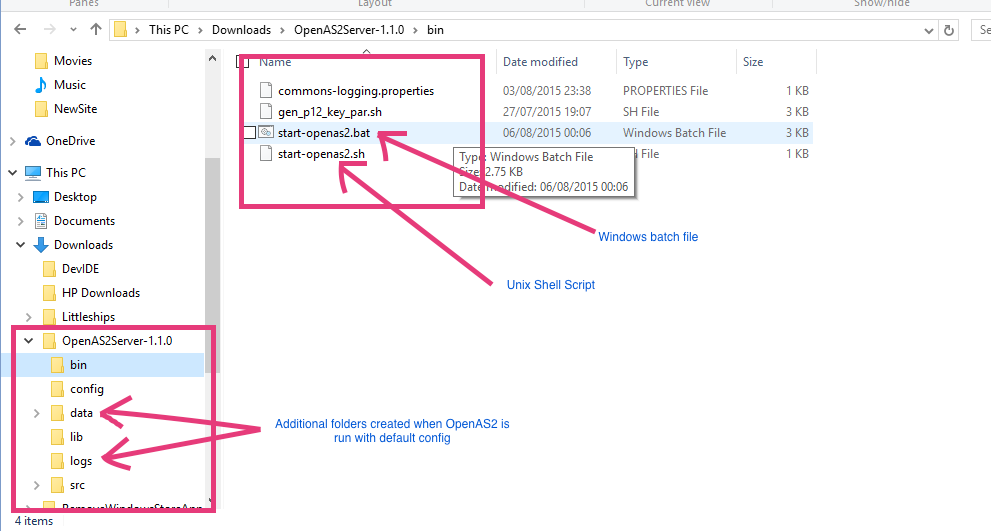
There are 2 executable script files in the bin folder of the AS2 application root as indicated in the screenshot above:
start-openas2.sh – for UNIX based systems
start-openas2.bat – for Microsoft Windows based system
It is not necessary to modify these files for the default install to work. If you choose to put the config.xml file in a different location than the default then you will need to edit the appropriate script file and set the path to the config.xml file appropriately.
Simply execute the script file and an AS2 server will start up. It will create the following folders along with sub folders when it starts assuming no change to the default config:
logs – contains the normal program logging
data – contains all the transferred files and any AS2 specific headers associated with AS2 transfers. This folder will have a number of sub folders for outbound and inbound files for different partners
In Microsoft Windows you should be able to double click the start-openas2.bat file and a command window will open as below.
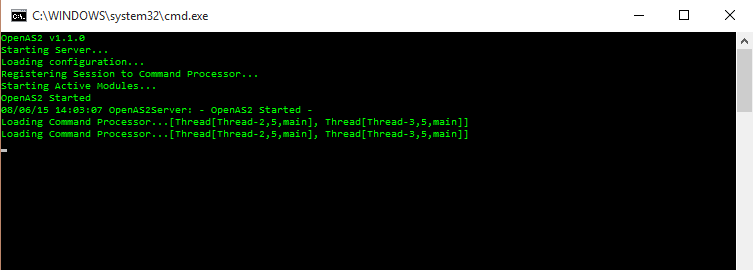
For Unix based systems such as Linux and OSX, open a terminal window and change directory to the “bin” folder of the install. The start_openas2.sh file should have execute permissions in which case simply type the name and press enter. If no execute permissions are set, either set the execute permission as needed or use “bash” to run the script:
/opt/OpenAS2:>bash opensas2.sh
The output in a Unix based system will be identical to that in a Windows based system.
After startup of the OpenAS2 application, no command prompt is shown in the command line window initially but you can enter a command or just press <ENTER> to get a visible prompt. Typing ? Will show possible commands. Each command will list sub commands they require if you try to enter them without the appropriate parameters.
A screenshot showing command entry is shown below.
Command Entry
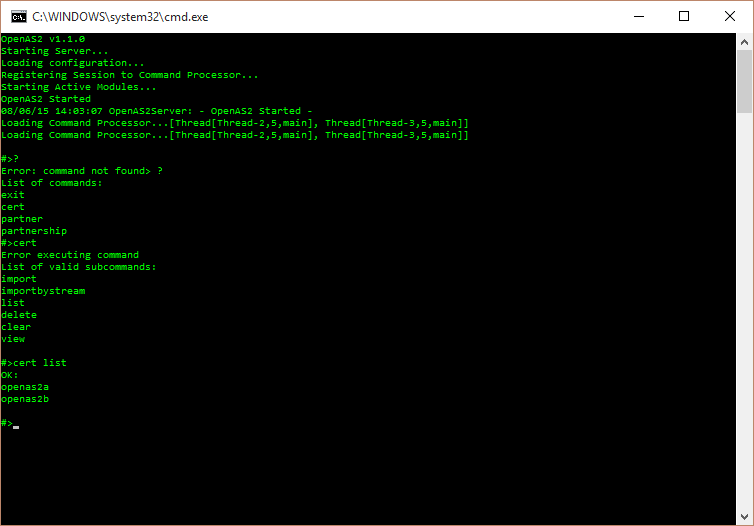
Although the application will launch as a daemon without any change to the default config, it is recommended that the following configuration changes are made to reduce unnecessary processing by modules that are redundant in this mode and filling the system logs with unwanted logging:
Remove the console logger – remove the element in the
<loggers> element as shown below
<logger
classname="org.openas2.logging.ConsoleLogger"/>
Remove the stream command processor in the
<commandProcessors> element as shown below
<commandProcessor
classname="org.openas2.cmd.processor.StreamCommandProcessor"/>
A sample “openas2.d” is provided in the bin directory of the install package. It provides support for starting and stopping the OpenAS2 application as a daemon using the init.d mechanism. Use the appropriate tool for the NIX operating system you are using to install the script in the /etc/init.d folder and create the soft links to launch the OpenAS2 application when the system starts.
First modify the openas2.d file to reflect the path where you have installed OpenAS2 then follow one of the options below.
On Redhat based systems as root:
$ cp <srcDir>/bin/openas2.d /etc/init.d/$ chkconfig --add openas2.d$ chkconfig --level 2345openas2.don
On Debian/Ubuntu based systems as root:
$ cp <srcDir>/bin/openas2.d /etc/init.d/$ chmod 750 /etc/init.d/openas2.d$ update-rc openas2.d defaults
A sample file openas2.service is provided in the bin folder of the install package.
First modify the openas2.d file to reflect the path where you have installed OpenAS2 then follow the steps below.
$ cp <srcDir>/bin/openas2.service /etc/systemd/system/$systemctl daemon-reload$ systemctl enable openas2.serviceTest that it works usingthe below commands:
$ systemctl enable openas2.service
$ systemctl start openas2.service
$ systemctl stop openas2.service
The deployment package contains a version of the Apache Commons Daemon for Windows to support running OpenAS2 as a Windows service. The default name of the service is OpenAS2Server. There are other ways to do it of course but this is the one we offer that works well. Feel free to provide us with documentation if you successfully implement it as a Windows service using a different tool.
There is a batch script in <installDir>/bin folder named install_winsvc.bat to simplify the install process.
NOTE: By default it names the service OpenAS2Server and assumes a 64-bit JVM and should work for all 64bit Windows servers. If you are using a 32 bit JVM remove “amd64” from the path in install_winsvc.bat file when installing.
The following steps will install OpenAS2 as a windows service:
Edit the install_winsvc.bat file and make any changes to the defaults (eg. Change startup to manual, change JVM parameters and set specific JVM instead of default JVM etc). See the Apache Commons Daemon project for more information on parameter settings for the install command.
Run the install_winsvc.bat file.
The Apache Commons Daemon files are located in <installDir>/bin/commons-daemon folder. The prunmgr.exe has been renamed to the name of the windows service as specified in the install_winsvc.bat file (changed to OpenAS2Server.exe). To check the installation or fine tune some of the service settings run OpenAS2Server.exe and adjust as needed.
POSSIBLE GOTCHA: The service will install as the “LocalService”.
Windows has inconsistent behaviour when it comes to permissions for
the “LocalService” account. On some Windows distributions
the default is to allow the "LocalService" account
"Folder Only" permission and then the directory
poller (running as LocalService user) is unable to see any
files dumped into the folder and therefore it appears that OpenAS2
does not work.
One fix is to switch to using the “LocalSystem”
account but if you want to retain the security of using LocalService
account (it restricts access to system resources much more than the
LocalSystem user which has full access) then you
should change the permissions on the folders that OpenAS2 reads files
from so that LocalService has full
control.
Something like this would work:
icacls
"D:\Path\To\OpenAS2\data" /grant LocalService:(OI)(CI)F /T
To uninstall the service use this command:
sc delete OpenAS2Server
Alternatively, from the installDir>/bin folder:
commons-daemon\amd64\prunsrv.exe //DS/OpenAS2Server
For removing if you have installed as a 32 bit service:
commons-daemon\prunsrv.exe //DS/OpenAS2Server
If the service fails to start, there are a few things that can be causing the issue.
If the log file in the commons-daemon/logs folder has a line saying “Failed creating Java” then you most likely using the wrong version of the procrun.exe
If when starting the service in the Windows “Services” applet it says “Incorrect function” in the event viewer log generated from that fail then you most likely using the wrong version of the procrun.exe
Try the following that may provide clues to where things are going wrong.
Check that the folder that OpenAS2 is installed in is accessible by the user allocated to run the service. The user is designated in the “Log On” tab of the Services control panel and by default this is the “Local Service” builtin user.
Run the service using the same command the windows service
calls to start it by opening a command prompt and change directory
to the installDir>/bin folder then run
this:
commons-daemon\amd64\prunsrv.exe
//TS/OpenAS2Server
The
output from this command may provide clues.
Run the OpenAS2Server.exe in the bin folder of the OpenAS2 install directory.
A properties window will popup that you can cross check the parameters that were used to install the service.
Specifically check that the Java path is correct.
Click the "Startup" tab of the popup properties window
You should see "start" in the Start Method box and the path to your config file in the "Arguments" pane.
Try starting the application from the command line:
Copy the line in the “Arguments” window
Open a command window
Change directory to the OpenAS2 install directory
Type: bin\start.bat (paste the string copied from properties window here)
Press ENTER
Verify that the server starts and if you have not disabled the command processor you end up with a ">" prompt (you may have to press ENTER to see it because of startup logging depending on how you have configured your app).
Type "exit" and press ENTER to stop it or just use CTRL+C.
If the above worked then try starting it using the following steps:
Run Powershell as administrator (type "Powershell" from the start menu and then right click on the "Windows Powershell" option and select "Run as administrator").
In Powersell window type and execute this command:
Start-Service OpenAS2Server
If it starts then stop it using this command:
Stop-Service
OpenAS2Server
If it started in the above process, open the Windows Services app and try to start/stop it from there.
However OpenAS2 is stopped, whether with the “shutdown” command, by stopping the service, or by a container platform such as Kubernetes or Docker sending it a termination signal, it first stops the directory pollers and the resender picking up new files and then waits for any file part way through being sent to finish, so that the transfer and its MDN are not cut off. Files that had not been started are left in the outbox and are sent after the restart. The wait is limited to the number of seconds set by this property, across all the files in progress:
shutdown_wait_seconds=25
The default is kept below the 30 seconds that Kubernetes allows by default between sending the termination signal and killing the process. If your transfers can take longer, raise this property and the terminationGracePeriodSeconds of the pod together, keeping the grace period a few seconds longer. The termination signal only reaches OpenAS2 if the Java process receives it directly, which is why the supplied start scripts and container image start Java with exec: a custom image or start script should do the same.
If the process is killed before a send finishes, the file is left in the pending folder configured by the pendingMDN attribute of the processor. When OpenAS2 next starts it logs a warning for each such file. A file reported as never sent was not transmitted and can be moved back to the outbox it came from. A file reported as interrupted after sending started may have been received by the partner, so check with them or the message tracking before sending it again or it may be delivered twice. Interrupted files are moved to the error folder once the time set by as2_mdn_response_max_wait_seconds has passed.
The default configuration of the OpenAS2 configuration is set up for three partners named “MyCompany”, “PartnerA” and “PartnerB”. However, PartnerB does not have a certificate set up so cannot be actively used unless you create and import a certificate for that partner.
You can use “MyCompany” and “PartnerA” for testing and the configuration will effectively send messages to itself from “MyCompany” to “PartnerA”.
It is NOT configured for sending from “PartnerA” to “MyCompany” but you can enable this by adding the appropriate attributes in the “PartnerA-MyCompany” partnership and adding a directory polling module to poll for files in a fpolder that will target MyCompany and the receiver.
You can simply start the OpenAS2 server without any changes and then copy a file into the appropriate outbox as defined by the relevant module using the org.openas2.processor.receiver.AS2DirectoryPollingModule classes “outboxdir” attribute to send the file to the desired partner.
The default configuration provides directory polling modules for 2 trading partners “PartnerA” and “PartnerB” and will create outbox folders <installDir>/data/toPartnerA and <installDir>/data/toPartnerB for explicitly targeting a partner for any file dropped in one of those folders.
If you wish to run 2 OpenAS2 servers on the same machine then the ports on the 2nd instance of OpenAS2 as configured in the config.xml must be different to those configured on the first instance (see Application Configuration above).
The “as2_url” attribute will need to be set to the appropriate port for the different instances to send to each other.
If using asynchronous MDN, the URL entry for the attribute “as2_receipt_option” in the partnerships.xml file for the 2nd instance must match the values configured in the 1st instances config.xml for hist name and port and vice-versa.
To test on a local machine using the supplied sample self signed SSL certificate (config/ssl_certs.jks) you should create a localhost DNS entry. The sample certificate was generated forusing “www.openas2.localhost” as the CN property on the.
This site will help in how to set up a local DNS: http://www.selfsignedcertificate.com/development_tips.php
The As2ReceiverModule module element should be configured correctly. The key attributes that will work with the supplied sample certificate are already in the sample config file and should just be uncommented:
protocol="https"
ssl_keystore="%home%/ssl_certs.jks"
ssl_keystore_password="testas2"
ssl_protocol="TLS"
The partnership definition for the connection URL will also have to be set to the appropriate host name and use “https” instead of “http”:
<attribute name="as2_url" value="https://www.openas2.localhost:10080"/>
If asynchronous MDN is used then the as2_receipt_option attribute must be configured for SSL as well:
<attribute name="as2_receipt_option" value="https://www.openas2.localhost.com:10081"/>
The following system property will have to be passed to the application in the java command line:
-Dorg.openas2.cert.TrustSelfSignedCN=www.openas2.localhost
… or use the more secure mechanism as described in the section Host Name Check And Certificate Fingerprint Match.
If you experience problems with SSL, try adding this to the startup command in the script file: -Djavax.net.debug=SSL
This section provides some help in identifying issues with AS2 transfers or configuration and execution of the OpenAS2 application. Experience has shown that not all systems properly implement the AS2 specification or have an interpretation of the specification that is different to the OpenAS2 default implementation. To accommodate these differences, the OpenAS2 application has some configuration parameters to change the default behaviour on a per partnership basis that may help to accommodate the implementation anomalies for various other AS2 systems.
As a first step that may shortcut you to a solution, check the compatibility settings for certain AS2 vendor software in this section: Partner AS2 Compatibility Settings
The sub-sections in this troubleshooting part of the document deal withg specific issues that may be quickly identified via logging (often requiring turning on DEBUG level logging or even more logging using TRACE level to provide some detail to the issue).
Some of the quick and easy things to try that have been known to fix a specific partnership that is failing when others are working are changes to the following partnership attributes:
“content_transfer_encoding” – see here below: Binary Encoding
“prevent_chunking” and “no_chunked_max_size” – Some AS2 implementations do not support the chunked transfer mechanism (typically systems that are still running pre HTTP1.1 protocol). The error message will vary but some systems will return a message indicating it is missing “Length” or “Content-Length” or they may return a message that is missing the MI?C and/or MDN report section. For solutions to this see herethis section below: Content Length Versus Chunked
remove compression by removing the “compression_type” attribute from the partnership
turn off CMS algorithm protection – see herethis section below” CMS Algorithm Protection
manage restricted HTTP headers – see herethis section below: SSL Certificate Exceptions
content_type – the module defaults are set in the config.xml file under the “mimetype” attribute. System default is “application/octet-stream”. Add this to a more specific value than the default perhaps specifying the character encoding. For example: application/EDIFACT; charset=iso-8859-1
Add an attribute named
“rename_digest_to_old_name
” to a value of “true” - this uses the old style of naming the
digest algorithm
Change the “sign” attribute is lower-case so for example use “sha1” instead of “SHA1” for the value.
Error processing or sending MDN
resulting in an error something like: UnsupportedDataTypeException:
no object DCH for MIME type ….
To fix this, ensure
that the classpath used to start OpenAS2 in the java command does
not use the asterisk for file globbing. This seems to cause problems
loading the mailcap files in the various libraries that contribute
mime type handlers for the various mime types used in AS2.
Some systems (including OpenAS2 prior to V1.3.7) do not canonicalize the MimeBodyPart as specified in the RFC when content transfer encoding is not “binary” (the OpenAS2 default is “binary” but can be set to other values using the “content_transfer_encoding” attribute on the partnership). This manifests as errors that cause signature authentication failure that may specifically mention a mismatched MIC. To cater for this, set the following attribute on the partnership:
<attribute name="prevent_canonicalization_for_mic" value="true"/>
If using a content transfer encoding algorithm other than “binary” results in authentication failures, try setting the attribute on the partnership:
<attribute name="content_transfer_encoding" value="binary"/>
Depending on the version of Java you are running, the HTTP class handling sending AS2 messages over HTTP that is part of the core Java distribution will automatically remove any restricted HTTP headers (see here for a discussion: http://stackoverflow.com/questions/11147330/httpurlconnection-wont-let-me-set-via-header).
In terms of OpenAS2 it specifically affects sending the “Content-Transfer-Encoding” header in the HTTP headers (see section 19.4.5 here: https://www.w3.org/Protocols/rfc2616/rfc2616-sec19.html). This should not be a problem for modern AS2 implementations that OpenAS2 communicates with but there are reports that some systems respond with an HTTP 400 error code and reject the message if the “Content-Transfer-Encoding” header is not present in the HTTP headers (it is present in the mime body part headers of the AS2 message).
To solve this, uncomment the line in the startup script file containing this entry
-Dsun.net.http.allowRestrictedHeaders=true
To ensure that other partners do not receive the “content-Transfer-Encoding” header you have 2 options:
Set
the following property in the
config.xml:
set_content_transfer_encoding_http_header=”false"
Set
this property in the partnership that requires sending the
header:
name=”set_content_transfer_encoding_http_header”
value=”true"
Ensure
that the partnership has the “content_transfer_encoding”
header set to either “binary”
or “8bit”
If
the config file property “set_content_transfer_encoding_http_header”
is not set it defaults to “true”
so set this
property in the partnerships
that do
NOT require
sending the header:
name=”set_content_transfer_encoding_http_header”
value=”false"
Ensure
that the partnerships
have
the “content_transfer_encoding”
header set to either “binary”
or “8bit”
Some AS2 systems do not support RFC6211.
The partner system will most likely not provide detailed information that this OID is the issue unless you request detailed logging from the partner but will manifest as authentication failures of some sort. Currently known systems that do not support this are IBM Sterling Integrator.
To disable the OID from being sent, add this attribute to the partnership (from a security point of view to include it wherever possible as it plugs a security issue in CMS signed messages):
<attribute name="remove_cms_algorithm_protection_attrib" value="true"/>
OpenAS2 will send all messages using the “chunked” mechanism whereby the actual size of the payload is not pre-determined and sent as a header ”Transfer-Encoding=chunked”. Some systems cannot handle the chiunked mechanism (it was standardizsed in HTTP 1.1) and require the “Content-Length” header is used instead. To make OpenAS2 use the “Content-Length” header method, set the following attribute on the partnership that needs it:
<attribute name="prevent_chunking" value="true"/>
If there is a limit on the size of the request to the remote server, you can prevent sending the message by setting the below attribute to the appropriate size:
<attribute name="no_chunked_max_size" value="104857600"/><attribute name="no_chunked_max_size" value="104857600"/>
The value for the "no_chunked_max_size" attribute
specifies the maximum size of the file it will attempt to send in
bytes so with the above value will not be able to send files larger
than 100MB
If possible avoid using the no_chunked_max_size
attribute for partners because it causes the OpenAS2 server
to add an additional step to calculate the length of the payload by
converting the payload to a byte array which has a small performance
cost for small files but can become significant in high volume
transfers of very large files.
Sometimes a partner uses a certificate that has intermediate providers not registered in your Java security keystore. Generally this will be manifested by an exception something like this:
javax.net.ssl.SSLHandshakeException: sun.security.validator.ValidatorException: PKIX path building failed: sun.security.provider.certpath.SunCertPathBuilderException: unable to find valid certification path to requested target
at sun.security.ssl.Alerts.getSSLException(Alerts.java:192)
at sun.security.ssl.SSLSocketImpl.fatal(SSLSocketImpl.java:1917)
at sun.security.ssl.Handshaker.fatalSE(Handshaker.java:301)
at sun.security.ssl.Handshaker.fatalSE(Handshaker.java:295)
at sun.security.ssl.ClientHandshaker.serverCertificate(ClientHandshaker.java:1369)
In this case you will need to set up a local trusted certificate provider keystore containing the root or chained (intermediate) certificates that are missing.
Steps:
Run the class embedded in the OpenAS2 library jar:
java -cp <pathToOpenAS2LibFolder>/openas2-server.jar
CheckCertificate options
usage: CheckCertificate [-a <arg>] [-A <arg>] [-c <arg>] [-d <arg>] [-h]
[-p <arg>] [-P <arg>] -s <arg> [-u <arg>] Checks SSL connectivity. Tries to connect to the remote server and establish a connection. -a,--authuser <arg> Basic auth user -A,--authpwd <arg> Basic auth password -c,--cacert <arg> Java keystore file to create -d,--debug <arg> Enabling debug logging -h,--help print this help -p,--port <arg> target server port -P,--password <arg> password for Keystore if not 'changeit' -s,--server <arg> the target host name -u,--uri <arg> URI part of the connection
"cacert" is the name you want to give to your local keystore (e.g jssechaincerts) "[passphrase]" is the password for the keystore - it will default to "changeit" if you do not provide one`
NOTE: If there is no existing keystore you want to add it to then
leave out the password otherwise it will throw an error. You can use
the keytool utility that comes with java to change the keystore
password if you wish but since it does not contain any private keys
there is little point in changing the password but if you do then
you will have to pass the new password in to the OpenAS2 app using
the javax.net.ssl.trustStorePassword property. For
information on this property see
here:
https://docs.oracle.com/en/java/javase/17/security/java-secure-socket-extension-jsse-reference-guide.html#GUID-A41282C3-19A3-400A-A40F-86F4DA22ABA9
If
the class only receives a single certificate as response from the
remote host it generally indicates that the root certificate is not
trusted and will need installing into a keystore for use by the
OpenAS2 application. The output from the class should make it clear
it was unable to successfully complete an SSL handshake and it will
import the certificate (root or chain as necessary) into the
keystore.
Add the local cert store to the OpenAS2 startup by adding
this to the startup command in the relevant batch file you are using
to start
OpenAS2:
-Djavax.net.ssl.trustStore=<pathToKeystore>/<localKeystoreFile>
NOTE: If you ran the CheckCertificate
mechanism a second time
but point it at the keystore it created the first time round it
should successfuly complete the handshake and there will be no
messages to say it is missing a certifcate.
For example,
run
it once like this:
java -cp openas2-server.jar CheckCertificate
as2.xyz.com:98765
jssechaincerts
Then run it like this:
java
-Djavax.net.ssl.trustStore=jssechaincerts -cp openas2-server.jar
CheckCertificate as2.xyz.com:98765
jssechaincerts2
The second instantiation uses the keystore from the first instantiations output and it should not create a new certificate in keystore "jssechaincerts2".
Java versions below 1.7 are no longer supported.
Sometimes it may be necessary to see what is actually in the mime body parts received from a partner. OpenAS2 provides a mechanism to enable logging of either received message mime body parts or receieved MDN mime body parts. These are enabled using OpenAS2 startup variables in the startup script in combination with TRACE level logging. Both the DOS and Unix scripts provide these variables but are commented out near the top of the batch file and you can simply uncomment and start the application.
IMPORTANT: this could produce large log files so use sparingly and disable as soon as possible.
The startup variables
are:
logRxdMsgMimeBodyParts=true
logRxdMdnMimeBodyParts=true
It appears that although Java7 does support TLSv1.2 it is not enabled by default (refer here: https://blogs.oracle.com/java-platform-group/entry/diagnosing_tls_ssl_and_https)
If you need to use the protocol, add the following to the top of the batch shell script that starts OpenAS2:
Windows: set EXTRA_PARMS=%EXTRA_PARMS% -Dhttps.protocols=TLSv1.2
Linux/Unix/OSX: EXTRA_PARMS=$EXTRA_PARMS -Dhttps.protocols=TLSv1.2
The system is configured to wait a maximum amount of time for a response to any message it sends to your partner and if no response is received it will abort, throw an error and attempt to put the message into the resend queue. The default time out is 60seconds.
If you are transferring very large files to your partner and/or your partner system takes a long time to respond to the sent AS2 message your will receive read timeout errors.
To fix this, set the "readtimeout" attribute on the AS2SenderModule to a large value if the time taken for the receiving system to respond to the sent file takes longer than 60 seconds. This attribute is set in milliseconds and the default is 60000.
So you would need something like this in the config.xml for a 2 minute timeout:
<module
classname="org.openas2.processor.sender.AS2SenderModule"
readtimeout="120000">
</module>
The same timeout can be set with the “sockettimeout” attribute, which is used in preference to “readtimeout” when both are set. It is the longest time to wait without receiving any data, so it covers the partner processing the message before it returns a synchronous MDN. The time allowed to establish the connection is set separately with the “connecttimeout” attribute, also in milliseconds with a default of 60000.
To give one partner longer without changing the timeout for every partner, set either value as an attribute of that partnership, for example a 5 minute wait:
<attribute name="sockettimeout" value="300000"/>
A partner that is regularly slow to respond can also be sent messages requesting an asynchronous MDN, so that it acknowledges receipt immediately and returns the MDN once it has processed the message.
See the section on tuning java (6.3. Tuning Java) for solutions to this issue.
If there are strange issues with files that cannot be found it is often the result of illegal characters in the file name that prevents the creation of a file from dynamic variables. Currently the system as of version 2.3.1 will remove specific characters from any generated file name.
The characters removed by default are: <>:\"|?*
To change the default, set the following property in the config.xml “properties” element escaping XML reserved characters as appropriate: reservedFilenameCharacters
e.g reservedFilenameCharacters="%lt;>:"|?*"
By default, the OpenAS2 app automatically removes header folding in HTTP headers to comply with the IETF specification for HTTP 1.1 (https://tools.ietf.org/html/draft-ietf-httpbis-p1-messaging-13#section-3.2). It is possible to disable removal of header folding using a property name “remove_http_header_folding” set to a value of “false” in the <openas2.properties> element of the configuration file. An example is shown below:
<properties
log_date_format="yyyy-MM-dd HH:mm:ss.SSS"
sql_timestamp_format="yyyy-MM-dd HH:mm:ss.SSS"
as2_message_id_format="<OPENAS2-$date.ddMMyyyyHHmmssZ$-$rand.UUID$@$msg.sender.as2_id$_$msg.receiver.as2_id$>"
remove_http_header_folding="false"
/>
The global property can be overridden at partnership level by adding the same property to the partnership definition for receiving from a partner (it only removes header folding for responses). If the global property is set and a partnership property then the partnership property overrides the global property. For instance, if the global property is “true” and the partnership attribute property is “false” then the system will not remove header folding.
See below for example setting at partnership level:
<partnership name="PartnerA-to-MyCompany">
<sender name="PartnerA"/>
<receiver name="MyCompany"/>
<attribute name="protocol" value="as2"/>
<attribute name="content_transfer_encoding" value="binary"/>
<attribute name="remove_http_header_folding" value="false"/>
The below table provides configuration settings for other AS2 systems that are known to work based on user feedback.
PLEASE FEEL FREE TO PROVIDE FEEDBACK FOR THE SETTINGS FOR ANY SYSTEMS THAT REQUIRE A CHANGE FROM THE DEFAULT PROVIDED WITH THE OPENAS2 INSTALL PACKAGE TO COMMUNICATE WITH OTHER AS2 SYSTEMS.
Where the field is left blank, the setting is unknown and the default that comes with OpenAS2 will probably work.
AS2 System |
Allow Restricted
Headers |
Prevent Canonicalization For MIC (partner attribute: prevent_cononicalization_for_mic) |
Remove CMS Algorithm
Protection |
Other |
|---|---|---|---|---|
IBM Sterling |
false |
|
true |
|
IBM Datapower |
false |
|
true |
|
Mendelson |
false |
true |
|
|
Seeburger (older versions) |
|
|
|
Add partner attribute:
|
Oracle Integration B2B |
false |
false |
false |
|
Amazon |
false |
true |
false |
Remove compression attribute as this has been reported to solve issues <attribute name="compression_type" value="ZLIB"/> Also reported that you need a 4096 bit certificate. |
By default the OpenAS2 server application will start up 21 command processor interfaces that is only accessible from the shell where the OpenAS2 server is started from. This allows running commands from an embedded prompt but is of no use in a production environment where the OpenAS2 server is deployed as a daemon or service and the shell command processor should be turned off.
The alternative option is the REST API
Socket command processor:
This
component requires using the remote control application
but it is not considered secure enough for use over the internet.
Socket
command processor – enabled with the property:
rest.command.processor.enabled="true"REST
API Socket command processor – enenabled
with the property:
restapi.command.processor.enabled="true"
This
component requires using the WebUI
control application and
should be used with a trusted
thiord
party signed
SSL certificate if used over the internet.
One will listen for commands in the console window that the OpenAS2 server was started from but will not be available if the server is started as a daemon/service. The other is a socketThe REST command processor that isis intended for connecting to the server from any location that has network access to the server and the port the socket listener is configured for. By default socket listenerit is configured for port 14321. For security reasons you should not make this port accessible from outside your private network.
The rest command processor is not described as part of this documentation.
Serverocket Command Processor Configuration For Remote Control
By default the socket command processor has a listener configured on port 14321. For security reasons you should not make this port accessible from outside your private network unless you have ensured you have implemented all the necessary security measures by changing the default user name and setting a strong password.
The socket listener allows remote connection to the OpenAS2 server to execute commands in the same way that can be done via the console (if accessible) on the sever. The OpenAS2 remote application is part of the application package but is not necessary to use it if you have no remote access requirement and should be left disabled in the config.xml file. If you wish to use it then if not using it by removing or commenting out the <commandProcessor> element with classname value org.openas2.cmd.processor.SocketCommandProcessorset the enabled property for this component to “true”:
socket.command.processor.enabled="true"
The user ID and password for connection can also be set as indicated in the table below. The remote control application will need to connect to the specified port with the specified user ID and password. The responses will be returned using XML format by default. To get simple text responses set the “response_format” attribute to “txt”.
Socket Command Processor Attribute |
Notes |
portId |
The port that the command processor will listen on for a connection. Defaults to 14321 |
userid |
User ID required to connect |
password |
Password required to connect |
response_format |
Defaults to “xml”. Set to “txt” for output style matching the console command processor |
Set
the appropriate
settings in your config.xml
The default config
provided with the OpenAS2 application download
is set as shown below:
<commandProcessor
classname="org.openas2.cmd.processor.SocketCommandProcessor"
portId="14321"
userid="userID"
password="pWd"
response_format="xml"/>
Running RemoteClient Side Configuration Control Application
This section assumes you have configured the server side appropriately as explained in the previous sections.
The connection uses an anonymous secure socket cipher and may require changing this if your Java implementation does not support the default cipher which is TLS_DH_anon_WITH_AES_256_CBC_SHA for the latest release. This cipher is not available in older Java versions and it may be necessary to switch to SSL_DH_anon_WITH_RC4_128_MD5
To switch cipher you will need to start the OpenAS2 server and the remote command client passing the cipher name as a system property using the -D switch that can be added to the batch script that starts the application. The property must be named “CmdProcessorSocketCipher”.
e.g java -DCmdProcessorSocketCipher=SSL_DH_anon_WITH_RC4_128_MD5 …
There is a Unix script that is part of the standard OpenAS2 release package to allow easy use of the remote command processor. The script is: remote_connect.sh
A similar Windows script should be simple to create.
It may be necessary to set the script to executable if for some reason it does not extract from the deployment package as executable.
Run the script without parameters to get the usage information to use this script. It is ideal for when deploying the OpenAS2 server as a daemon or service and the consolde logger is therefore disabled.
Follow the steps below to connect to the OpenAS2 server using the remote tool from a separate machine:
Download the OpenAS2 remote tool jar (choose the appropriate jar version from here: https://mvnrepository.com/artifact/net.sf.openas2/openas2-remote) or extract it frpomfrom the <installDir>/bin/remote folder of your installed version.
Save the jar to a directory (for example /OpenAS2Remote ))
Run your OpenAS2 server.
On the machine where you have installed the remote jar run
this command:
java [-cp
/path/to/remote/jar/openas2-remote-x.x.x.jar]
org.openas2.remote.CommandLine <hostname of machine running
OpenAS2 server> <portId> <userid> <password>
- the “-cp path/etc...“
is not nbecessary if you have the jar in the current directory you
are rnning the java command from
- use “localhost” if
running on the same machine as the OpenAS2 server for the “hostname”
See here for executing commands: Command Entry
Use “shutdown” to terminate the OpenAS2 server.
Use “exit” command to terminate the remote command processor.
The socket command processor uses the same commands as the console command processor.
The one difference is the “exit” command. If the “exit” command is entered on the remote command processor it exits the remote command processor. To shut down the OpenAS2 server remotely use the “shutdown” command.
To see a list of commands to run type “?” and press <ENTER> key.
There is a UI implementation to use the rest API in the WebUI folder of the code base in Github:
https://github.com/OpenAS2/OpenAs2App/tree/master/WebUI
To use it follow the instructions in the README file in that folder.
The REST API command processor works by default on port TLS/SSL 8443, and works as a HTTP/REST access layer over the Command Processor interfaces. It exposes endpoints for each available command under the path “/api”.
The socket listener allows remote connection to the OpenAS2 server to execute commands in the same way that can be done via the console on the sever. The OpenAS2 remote application is part of the application package but is not necessary to use it if you have no remote access requirement and should be left disabled in the config.xml file. If you wish to use it then set the enabled property for this component to “true”:
restapi.command.processor.enabled="true"
The base URL, user ID and password for connection can also be set as indicated in the table below. The API client will need to connect to the specified URL and provide with the specified user ID and password via a Basic Authentication Header. The responses will be returned using JSON formats by default.
REST Command Processor AttributeProperty |
Notes |
restapi.command.processor.baseuri |
The base url used to expose the API. The format is: <schema>://<address>:<tcp-port>/ Where:
To listen to all available interfaces the default address: 0.0.0.0 |
restapi.command.processor.userid |
User ID required to connect |
restapi.command.processor.password |
Password required to connect |
ssl_protocol |
Defines the SSL/TLS protocol and version to be used for SSL/TLS support |
ssl_keystore |
Defines the KeyStore used to find the Public/Private key for SSL/TLS |
ssl_keystore_password |
Defines the password of the KeyStore used to find the Public/Private key for SSL/TLS |
Set
the appropriate settings in your config.xml
The default config
provided with the OpenAS2 application download is set as shown
below:
<commandProcessor
classname="org.openas2.cmd.processor.RestCommandProcessor"
enabled="$properties.restapi.command.processor.enabled$"
baseuri="https://localhost:8443"
ssl_protocol="TLS"
ssl_keystore="%home%/ssl_certs.jks"
ssl_keystore_password="testas2"
userid="userID"
password="pWd" />
restapi.command.processor.enabled="false"
restapi.command.processor.baseuri="http://localhost:8080"
restapi.command.processor.userid="userID"
restapi.command.processor.password="pWd"
ssl_keystore="%home%/ssl_certs.jks"
ssl_keystore_password="testas2"
Override these values using a properties file as described in this section: OpenAS2 Configuration Properties
The REST API module is just an access layer to the Commands API of OpenAS2. Therefore follows the same convention as the OpenAS2 commands listed on /Server/src/config/commands.xml.
It can List, View, Delete, and Add: Partners, Partnerships & Certificates. Set different log levels and Refresh the Configuration from File or Store the in memory configuration to files.
All the endpoints are exposed under the /api path in the format shown below:
GET|POST /api/<command-group>/<command-method>
For example, from the console module you could list the existing loaded partners like so:
# partner list
The equivalent for the API would be:
GET /api/partner/list
Any HTTP Client should be capable of making requests to the API provided it can generate the correct payload and headers. POSTMAN (https://www.postman.com/) is a well-known tool used to test APIs. The following example to check the server version and API availability is based on the default configuration:
Request:
curl --location --request GET 'https://localhost:8443/api'
Response:
{
"type": "OK",
"results": [
"OpenAS2 Server v3.0.0"
],
"result": "OpenAS2 Server v3.0.0\r\n"
Variables can be used in configuration files for run time replacement of strings. In the case of headers and attributes the reference can be used to change its value. Some variables are specific to certain processor modules and not supported for all situations where dynamic variables can be used. The variables used in the configuration files are as follows:
\$date.xxx$ - create date strings in a defined format
where xxx is any valid character
formatting string defined in java.text.SimpleDateFormat
for
example: $date.YYYY$ gets the 4 digit year
$date.MM$ gets
the 2 digit month
$date.dd$ gets
the 2 digit day of month
$msg.xxx.yyy$ - accesses various information contained in the AS2 message.
Typically used by file modules to configure the name of files used to persist the message payload.
The “xxx” part can be any one of the following:
sender – accesses the
“sender” element of the partnership in use for the current
message. “yyy” can be any attribute name within the
“sender” element
eg.
$msg.sender.as2_id$ -
retrieves the AS2 ID of the sender of the message
receiver - accesses the
“receiver” element of the partnership in use for the current
message. “yyy” can be any attribute name within the
“receiver” element
eg.
$msg.receiver.as2_id$ -
retrieves the AS2 ID of the receiver of the message
attributes – accesses
any attributes on the message. The attribute name is used in place of
“yyy”
e.g
$msg.attributes.filename$
accesses the name of the file contained in the AS2 message
headers - accesses any
headers on the message. The header name is used in place of “yyy”
e.g
$msg.headers.content-type$
accesses the content type
header for the
AS2 message
$msg.headers.message-id$
accesses the Message-ID
header for the
AS2 message
content-disposition - used
to access any content-disposition attribute in the received message
content disposition where the attribute identifier is used in place
of “yyy”
e.g
$msg.content-disposition.filename$
accesses the name of the
file received from the partner
$mdn.zzz$ for message mdn parameters, used by EmailLogger and MDNFileModule
where zzz can be any of the following values:
msg – requires “zzz” to be in the form “xxx.yyy” and can access data points as defined for $msg.xxx.yyy$ format dynamic variables above
sender – gets the as2_id of the sender
receiver – gets the as2_id of the receiver
text - gets the text portion of the MDN
attributes – requires “zzz” to be in the form “xxx.yyy” and can access data points as defined for $msg.xxx.yyy$ format dynamic variables above
headers – requires “zzz” to be in the form “xxx.yyy” and can access data points as defined for $msg.xxx.yyy$ format dynamic variables above
eg.:
$mdn.text$ gets the
text portion of the MDN
$rand.zzz$ can be used on most strings to produce random strings.
Produces a random UUID or a 0 padded random number of a defined number of digits where zzz can be any string of any number of characters
if “zzz” is “UUID” or “uuid” (e.g $rand.UUID$) then it produces a random UUID
for any other string of characters other than UUID, the number of characters in the string determines the number of digits in the random number that is generated and will be zero padded
e.g $rand.1234$ - creates a 4 digit random number between 0000 and 9999
$rand.ax1fg4c5$ - creates an 8 digit random number between 00000000 and 99999999
$exception.xxx$ -used by EmailLogger
where xxx can be any of the following
name - retrieves name of the exception
message – retrieves the exception message
trace – retrieves the trace log for the exception
eg.:
$exception.trace$ gets
the trace log of the exception
$component.xxx$ -used in module configuration
where xxx can be any of the attribute names specified above the attribute in the same module element. Can be used to simplify setting hard coded strings into a concatenated string used by the server module. See the DB tracking module definition for an example
Appendix: config.xml file structure
Node: properties
Various properties can be defined here and accessible globally within the OpenAS2 application. See the standard config.xml for existing properties that are supported. Developers who create custom modules can pass config to those modules via the properties and access them using Properties.getProperty(<propertyName>)
Node: openas2
Node: certificates
Attributes
Node: partnerships
Describes
the OpenAS2 classes to handle the trading partner identifications.
Attributes
Node: loggers
Describes
the OpenAS2 logging classes to use. You must include
-Dorg.apache.commons.logging.Log=org.openas2.logging.Log in your
startup call or as a property in the commons-logging.properties
file. See
http://commons.apache.org/logging/guide.html#commons-logging-api.jar
for more information.
Do not use this node when using
other logging packages (e.g. log4j) with the OpenAS2 package.
Node: logger (for E-mail
logging)
Optional, if not specified no E-mail logging is
performed.
Attributes
Node: logger (for file
logging)
Optional, if not specified no file logging is
performed.
Attributes
Node: logger (for Console
logging, writes to System.out)
Optional, if not specified no
console logging is performed.
Attributes
Node: commands
Describes
the OpenAS2 command classes to use
Attributes
Node: processor
Describes
the OpenAS2 class to handle the message processors.
Attributes
Node: module
Module that sends out AS2 messages.
Attributes
Node: module
Module
that sends out AS2 MDNs.
Attributes
Node: module
The
following will describe a module to process outgoing message
placed in a generic directory. The module determines the receiver
and send from the file name placed in the directory (see format
attribute). This module will look for files in specified directory
and file names to send to the default message processor.
Attributes
Node: module
Attributes
Node: module
Attributes
Where MDNs are being stored to disk and message state tracking to a database is enabled, the location of the MDN stored for a message can be looked up using the name of the payload file that was sent. This avoids having to know the message ID or having to search the MDN storage directory, which is useful when the stored MDN has to be retrieved as proof of delivery for a file identified by its name.
From the console the command is:
messages mdnpath <filename>
The equivalent API request is:
GET /api/messages/mdnpath/<filename>
The stored MDN file path is returned, or an error is returned if no MDN is recorded for that file name. The value is read from the message state tracking database so the DbTrackingModule must be enabled for this command to work.
This file describes your company and your trading partners. This file requires modification to work with your application
Node: partnerships
The
root node.
Node: partner
partner definition
Attributes
Node: partnership
defines partner relationships
between sender and receiver
Node: partnership
Attributes
Node: sender
Attributes
Node: receiver
Attributes
The following is a list of nodes that use the node name of attribute. The subnodes of attribute use a name/value node naming pair structure.
Node: attribute
name
is protocol defines the protocol to use with this
partner.
value is as2
name="protocol"
value="as2"
Node: attribute
name
is subject defines text used in E-mail subject line
value – can use
references to message parameters as
in example. If this attribute is not present in the partnership
when sending an MDN, the subject will use the text in the received
message much like responding to an email does so putting a subject
attribute in a partnership where it is the receiver effectively
overrides the received subject
name="subject"
value="File $attributes.filename$ sent from
$sender.name$ to $receiver.name$"
Node: attribute
name
is as2_url defines partners AS2 server's URL
value
name="as2_url"
value="http://www.MyPartnerAS2Machine.com:10080"/>
Node: attribute
name
is as2_mdn_to when
set this specifies that an MDN response is required and defines
value of the “"Disposition-Notification-To"
header in the AS2 message sent to the partner. It is normally an
email address but can be any string that is meaningful
value
name="as2_mdn_to"
value="datamanager@mypartner.com"
Node: attribute
name
is as2_receipt_option defines asynchronous MDN server's
URL
value
name="as2_receipt_option"
value="http://www.MyAS2Machine.com:10081"
Node: attribute
name
is as2_mdn_options defines MDN option values for E-mail
header
value
name="as2_mdn_options"
value="signed-receipt-protocol=optional, pkcs7-signature;
signed-receipt-micalg=optional, sha1"
Node: attribute
name
is encrypt defines encrypting algorithm name for E-mail
header
value
name="encrypt"
value="3des"
other option values: cast5, rc2_cbc, aes128, aes192, aes256
Node: attribute
(optional)
name is
content_transfer_encoding
defines what the header field should display
value 8bit (default),
binary, ...
name="content_transfer_encoding"
value="binary"
Node: attribute
(optional)
name is
compression_type
if defined it determines what the
type of compression to use. Leave this attribute out
if no compression is required
value
ZLIB (default) – no
other supported options
name="compression_type"
value="ZLIB"
Node: attribute
(optional)
name is
compression_mode
if defined it determines when
compression occurs. If this attribute is not specified then
compression occurs before signing.
value
– “compress-after-signing”
name="compression_mode"
value="compress-after-signing"
Node: attribute
(optional)
name :
store_received_file_to
If
defined it overrides the filename
parameter in the MessageFileModule.
value
– a string defining the full path and file name
where the reeived files will be stored. It supports the use of
dynamic variables in the string.
name="store_received_file_to"
value="$properties.storageDir$/data/$msg.sender.as2_id$/inbox/$msg.sender.as2_id$_$rand.12345$_$msg.content-disposition.filename$"
List of commands available to the OpenAS2 server Application.
Node: commands the root node
Node: multicommand
attribute
Node: command
attribute
The table structure for message tracking is stored in an XML file structure that uses the Apache DDLUtils project structure. This mechanism for updating the database focuses on the default H2 that comes with OpenAS2 but for external databases the steps for other databases than H2 are the same but with different configuration files as defined in the next appendix. The steps shown below assume that you have the Apache Ant project build tool installed (https://ant.apache.org/).
Run the
commands
defined below that are
found in the “bin” directory of your install in the order upgrade
the DB if you are on a unix based system or
use the “No script option” if you are on Microsoft Windows.
Run
the command with “-h”
option to get the command line options. The
examples below assume the defaults have not been changed. If you have
changed them then use the appropriate options for the script.
To
upgrade your DB you must FIRST
dump the data BEFORE the upgrade:
h2_db_dump.sh
-P <your DB password>
No
script
option:
java -cp <path
to install dir>\lib\h2-<version
of H2 lib>.jar
org.h2.tools.Script -user sa -password <password>
-url jdbc:h2:<path
to install dir>/config/DB/openas2
-script <dump
data file name>
-options compression zip
Copy
the created data dump file to a safe location.
Once
the new version of OpenAS2 is installed, run
the following commands to import your data:
rm
<path to install dir>/config/DB/*
Windows
option:
del
<path
to install dir>\*
h2_load_data.sh
-P <your DB password> -f
<dump
data file name>
No
script
option:
java -cp <path
to install dir>\lib\h2-<version
of H2 lib>.jar
org.h2.tools.RunScript -user sa -password <password>
-url jdbc:h2:<path
to install dir>/config/DB/openas2
-script <dump
data file name> -options
compression zip
To
create a fresh DB:
h2_create_new_db.sh
-P <your DB password>
No
script
option:
java -cp <path
to install dir>\lib\h2-<version
of H2 lib>.jar
org.h2.tools.RunScript -user sa -password <password>
-url jdbc:h2:<path
to install dir>/config/DB/openas2
-script <path
to install dir>/config/db_ddl.sql
See the H2 documentation here for more information: https://h2database.com/html/tutorial.html#upgrade_backup_restore
OpenAS2 includes a jar file that uses the Apache DDLUtils project application to generate DDL statements to create or update the database in your deployed version of OpenAS2 to match the XML definition of the database in the version you are upgrading to and can also be used to automatically update the target database. This utility will analyze the open database and match it against the XML definition to generate a set of DDL statements to upgrade the database without losing any existing data.
Configuration for the database update functionality comprises 3 files located in the <installDir>/resources/db folder:
openas2-schema.xml – the XML definition of the table used to capture AS2 message states
jdbc.properties.h2 – defines the connection parameters for the databases
build.xml – the Ant build file that invokes the DDLUtils application
Additionally there is a unix script file in the same folder that will execute the updater to update the open database: create_db_table.sh
Run the command shown below in the directory containing the Ant build file to generate a DDL file containing statements to update the DB to match the XML definition:
ant -Djdbc.properties.file=jdbc.properties.h2
You can review the SQL file it generates to verify it looks correct and then apply the SQL file using a SQL tool or just use the command below to apply the change to the database.
To directly update the database without generating a DDL file run the script file named “create_db_table.sh” or use this command:
ant -Djdbc.properties.file=jdbc.properties.h2 writeSchemaToDb
In summary, the steps to update an existing deployment to the latest schema are:
If not already running, start the OpenAS2 application (it can be the newly deployed version or an older one)
Open a command window and change to the folder containing the scripts in the version you are upgrading to (<installDir>/resources/db)
Run the unix script “create_db_table.sh” or execute the
command below:
ant -Djdbc.properties.file=jdbc.properties.h2
writeSchemaToDb
If your OpenAS2 is still running the old version you should shut it down straight after upgrading and copy the database file (<OpenAS2InstallDir>/config/DB/openas2.mv.db) to the new deployment as the changes to the schema may result in errors if a message is sent or received once the schema has been upgraded.
axion
cloudscape
db2
derby
firebird
h2
hsqldb
interbase
maxdb
mckoi
mssql
mysql
oracle
postgresql
sapdb
sybase
ant -Djdbc.properties.file=jdbc.properties
To directly update the database without generating a DDL file use this command:
ant -Djdbc.properties.file=jdbc.properties writeSchemaToDb
Each release contains a RELEASE-NOTES.txt file. This file contains a section specifically about upgrading to use new functionality if there was any config related new functionality in that release. There will be no upgrade notes for the particular release if it was just a bugfix or minor enhancement where there is no config to be done. You should add any configuration related elements to the appropriate XML file(s) if you wish to use new functionality that requires configuration settings.
The basic upgrade path is as follows:
partnerships.xml : Review the release notes for any new attributes that are supported in the partnerships.xml and add if there is a perceived advantage/enhancement (in general the partnerships.xml should not need any modification if it already works as all enhancements to the partnership configuration have ensured they do not change the default behavior from prior versions)
config.xml: Review and merge any new configuration into your existing config.xml. Generally it should be fairly obvious where there are "missing" items in your existing file compared to the version you are upgrading to. For performance purposes, make sure you do not add unwanted modules and perhaps a good idea to review any modules you have not used but have enabled such as the remote command processor, socket logging etc.
Review the startup script (start_openas2.sh or start_openas2.bat) and merge any enhancements you may have made in your deployed version into the new version and replace the old version if necessary. Specifically ensure you set the classpath appropriately to cater for upgraded or new libraries.
Tracking database – see the relevant appendix in this
document for upgrading the database if necessary based on reviewing
the release notes (there will be an explicit statement about
upgrading the database if there are any schema changes). If you are
using the default H2 database for message tracking then you must
copy the database file to the new installation if you are creating a
new installation and copying config across to it. The database is
located here:
<OpenAS2InstallDir>/config/DB/openas2.mv.db
Delete all files in your "lib" folder and copy all
the files from the release package "lib" folder into your
deployed folder.
NOTE: The alternative route is to unzip the new release into a new folder on your server and follow steps 1, 2 and 3 above except merging the changes you made originally into the new deployment. This route may be the quicker route if you have not customized the configuration files extensively and will ensure you do not miss newly added configuration.
Remember to update you windows service or nix startup daemon settings to the new folder if you change the folder name.
There are 4 key modules that must be considered in designing for a
clustered/load balanced setup:
1. Directory polling module (or
equivalent module responsible for passing a file into the sender
module)
2. Resender module - handles the case where the remote
partner either is not available when a connection is attempted or the
exchange fails at some point in the AS2 message exchange process.
3.
Asynchronous MDN receiver module - requires access to the pending
information about the message that was sent causing this MDN to be
received (the pending information is stored by the AS2 sender module
on the file system)
There is a different complexity involved depending on whether you use synchronous or asynchronous MDN for any sent messages in a load balanced scenario. Synchronous is much simpler since in the case of an asynchronous MDN there is a separate network connection made back to your OpenAS2 service to the one made to send the message and therefore there is no guarantee which node will receive the MDN unless you have dedicated host names for each node in a cluster just to ensure the MDN is returned to the node that sent the message (the sender includes the MDN response host name as part of the sent AS2 message to the recipient that will send the MDN back). Since the decision to request a synchronous or asynchronous response rests with the sender and the recipient is told which mechanism to use in the headers of the sent message it is possible to simply ensure that sent messages only use the synchronous mechanism. However, you might find that some partners require asynchronous MDN so the design relying on using only synchronous MDN may not cater for all your partners you send messages to.openas2
Currently, OpenAS2 stores the sent message on the file system pending an MDN response so that the resend mechanism works if there is an MDN response indicating a failure or no MDN response is received. If the sent message pending information is stored on a shared file system then the node that receives the MDN can either mark the message as processed and delete the stored pending information file or reconstruct the original message if a resend is needed passing the message to the resender queue and it should work ok.
For the outbound side, you will need to have a mechanism to ensure
only one node picks up the message to be sent. Since the current
OpenAS2 code base only provides for a directory polling module, some
of your possible options are:
1. have a dedicated directory per
OpenAS2 instance and a controller deciding which instance to send the
file to (means the controller itself has some level of complexity in
its design and must have some way of knowing if the file was ever
actually sent - could use the state logging in the database for
this)
2. have a shared network file system and enhance the
directory poller to provide a mechanism to ensure only one of the
nodes picks up the file
3. Create a new web service module that
provides a means for a network connection for the file to be passed
in - the web service would be load balanced to ensure high
availability. The asynchronous MDN response means there is no
guarantee which node will receive the MDN and therefore any web
service would need some means of verifying the MDN was received.
There is a similar problem for the resender module in as much as
it works somewhat like the directory polling module where it scans a
directory looking for messages to resend. Some possible solutions
are:
1. Have a resender module selection mechanism that allows
only one node in a cluster to be the active resender and a mechanism
to ensure a new node will take over in the case of the active node
failing
2. Implement a resender queue module that provides a
mechanism for resender modules on all active nodes to request any
pending message to be resent
3. Offload the resend decision to
the web service that passes in the original file so there is no
resender module in OpenAS2. Instead the failure to successfully send
is fed back to the originating service
For the inbound side there should be no real significant hurdles since the whole process is synchronous even for asynchronous MDN. As long as you use a shared network file system for storing received messages or each node writes the received file to a file system that will be picked up by the appropriate consumer of that file.
If you are using Maven for your project and building custom modules to enhance the OpenAS2 application or you are including OpenAS2 into a larger project and using it as a library then you can use the maven dependency in your pom.xml as follows:
<dependency>
<groupId>net.sf.openas2</groupId>
<artifactId>openas2-server</artifactId>
<version>[use the version you want here eg. 2.13.0]</version>
</dependency>
OpenAS2 Version
4.15.0 Copyright Uhuru
Technology 2025 Page